Keeping your high-end router’s firmware up to date is one of the smartest moves you can make to protect your network and boost its performance. But if you’re unsure how to do it safely and quickly, you’re not alone.
You’ll discover simple, step-by-step instructions that anyone can follow—even if you’re not tech-savvy. By the time you finish reading, you’ll have the confidence to update your router’s firmware like a pro, ensuring your internet stays fast, secure, and reliable. Ready to take control of your network?
Let’s dive in.
Preparing For Firmware Update
Find the current firmware versionon your router’s admin page. This helps to know if an update is needed. Write down the version number for reference.
Always backup your router settings. This saves your network info and passwords. Use the router’s backup feature found in the settings menu. Keep the file safe on your computer.
Download the correct firmware filefrom the official router maker’s website. Match the model and version exactly. Using wrong firmware can cause problems.

Credit: www.thinkbroadband.com
Accessing Router Settings
Start by connecting your computer or phone to the router’s network. This can be done via Wi-Fi or an Ethernet cable. Make sure the connection is stable to avoid interruptions.
Open a web browser and enter the router’s IP address in the address bar. Common addresses are 192.168.1.1or 192.168.0.1. This opens the login page for the admin panel.
- Enter the usernameand password. These are often on the router label or in the manual.
- If you changed the login details before, use those.
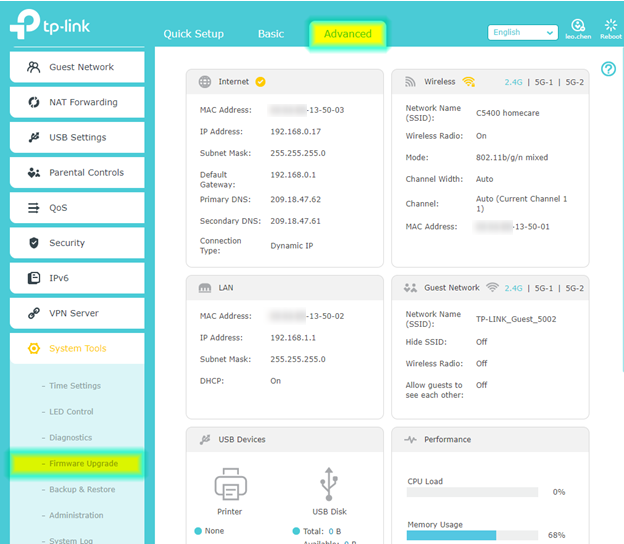
Once logged in, find the firmware update section. This is usually under “Administration,” “System,”or “Maintenance”menus.
Here, you can check if a new firmware version is available and start the update process.
Performing The Firmware Update
Access the router’s admin page using its IP address. Locate the firmware update section. Click on the option to upload the firmware fileyou downloaded earlier. Select the correct file from your computer. Double-check the file matches your router model.
Start the update by clicking the initiate update processbutton. The router will begin installing the new firmware. Avoid turning off or restarting the router during this time. Interruptions can cause serious issues.
Wait for update completion. This may take a few minutes. The router will usually restart automatically after the update. Once it comes back online, check the firmware version to confirm the update succeeded.
Credit: www.netis-systems.com
Post-update Steps
Check the router’s admin page to confirm the firmware version. This ensures the update installed correctly.
If settings were reset during the update, restore your saved configuration. Use the backup file from before the update.
Run a quick speed test to check network performance. Make sure your internet is stable and fast.
- Verify all devices connect to the network.
- Test wired and wireless connections.
- Restart the router if any issues appear.
Troubleshooting Common Issues
Update failure can happen due to unstable internetor power loss. Restart the router and try again. Clear your browser cache before starting the update. Use a wired connection for stability. Avoid interrupting the process once it starts.
Rolling back to previous firmware helps if the new update causes problems. Access the router’s settings and find the rollback option. Use the firmware file that worked before. Keep a backup of your current settings to restore later if needed.
Contacting support is best if issues persist. Prepare your router model and firmware version details. Describe the problem clearly and mention steps already taken. Support teams can provide specific fixes or remote help.
Credit: www.tp-link.com
Frequently Asked Questions
What Is Firmware And Why Update It On Routers?
Firmware is software embedded in routers controlling their functions. Updating firmware improves security, fixes bugs, and adds new features, ensuring optimal performance and protecting your network from vulnerabilities.
How Do I Check My Router’s Current Firmware Version?
Access your router’s admin panel via a web browser. Look for “Firmware Version” or “System Information” in the settings menu to find the current firmware version installed on your router.
Can I Update Router Firmware Automatically?
Many high-end routers support automatic firmware updates. Enable this feature in the router settings to ensure your device stays updated without manual intervention, improving security and functionality.
What Precautions Should I Take Before Updating Firmware?
Backup your router settings and ensure a stable power supply. Avoid interrupting the update process to prevent firmware corruption and potential router malfunction.
Conclusion
Updating your router firmware enhances performance and security. It’s crucial for optimal network functioning. Follow the steps outlined for a smooth update process. Always backup settings before starting. Check the manufacturer’s website for the latest version. Regular updates protect your network from vulnerabilities.
Keep your router functioning efficiently. Stay informed about new firmware releases. A well-maintained router ensures a faster, safer connection. Enjoy a seamless internet experience with updated firmware. Keep learning and stay connected. Your network’s health depends on it. Happy surfing!