If you rely on your travel router to keep you connected on the go, updating its firmware is a must. You might think it’s complicated or time-consuming, but it doesn’t have to be.
Keeping your travel router’s software up to date boosts security, improves performance, and unlocks new features. In this guide, you’ll discover simple, step-by-step instructions to update your travel router firmware quickly and safely. Stick with me, and you’ll never worry about slow connections or security risks while traveling again.
Check Your Router Model
Checking your travel router model is the first step before updating firmware. Each router has a unique model number. This number helps find the right firmware version. Using the wrong firmware can damage your device.
Finding the exact model ensures a smooth update process. It also helps avoid compatibility issues. Knowing your model makes searching for guides easier.
Locate The Model Number On The Device
Look for a label on the back or bottom of the router. This label usually shows the model number and serial number. The model number often starts with letters followed by numbers.
Check The Router’s Web Interface
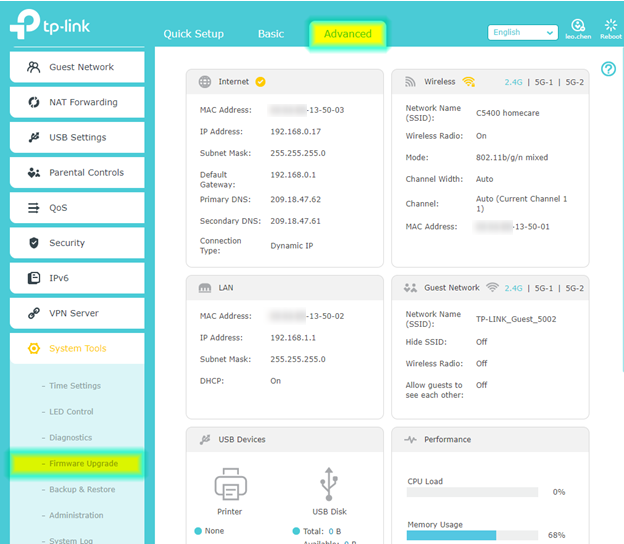
Access the router’s settings page through a web browser. Enter the router’s IP address in the address bar. Login with your username and password. The model number is usually displayed on the main page or system information section.
Refer To The User Manual
The user manual contains the model number and other important details. If you keep the manual, check the cover or first pages. Digital copies may be available on the manufacturer’s website.
Use Manufacturer Support Tools
Some brands offer apps or websites that detect your router model. These tools help find updates and guides specific to your device. Visit the official support page for your router brand.
Credit: www.tp-link.com
Download Latest Firmware
Downloading the latest firmware for your travel router is a key step in keeping your device secure and running smoothly. Firmware updates often fix bugs, improve performance, and add new features. If you skip this step, you might miss out on important enhancements or expose your network to vulnerabilities.
Check Your Router’s Model And Current Firmware Version
Before searching for updates, identify your router’s exact model number. You can usually find this on the back or bottom of the device. Also, log into your router’s admin page to see the current firmware version installed. Knowing these details helps you find the correct update and avoid downloading the wrong files.
Visit The Manufacturer’s Official Website
Always download firmware directly from the manufacturer’s website. This ensures the update is authentic and safe. Look for a “Support” or “Downloads” section, then search for your specific router model.
Download The Correct Firmware File
Firmware files often come in specific formats like .bin or .img. Make sure you download the exact file recommended for your router’s model and hardware version. Downloading an incorrect file can cause serious damage to your device.
Verify The Firmware File Integrity
Some manufacturers provide a checksum or hash value for the firmware file. Use this to verify that your download isn’t corrupted. This simple step can save you from installation errors and potential device failure.
Save The Firmware File To An Easy-to-access Location
After downloading, save the file to a folder you can quickly find, like your desktop or a dedicated “Router Firmware” folder. This makes the next step—uploading the firmware—much faster and less stressful.
Prepare Your Device
Preparing your travel router before updating its firmware is essential. It helps avoid data loss and connection problems. Taking simple steps ensures a smooth update process without interruptions. Follow these key preparations carefully to keep your device safe and efficient.
Backup Current Settings
Save your router’s settings before starting the update. This step prevents losing important configurations.
- Open the router’s admin page using its IP address.
- Find the settings or backup section in the menu.
- Click on the option to export or save the current configuration file.
- Store the backup file in a safe folder on your computer.
Having this backup allows easy restoration if the update causes issues.
Connect To Router
Ensure your computer is connected to the travel router directly. Use a wired Ethernet connection if possible. Wired connections reduce the risk of disconnection during the update.
- Plug an Ethernet cable from your computer to the router’s LAN port.
- Check for a stable internet connection through the router.
- Disable Wi-Fi on your computer to avoid switching networks.
A steady connection keeps the update process uninterrupted and safe.
Access Router Interface
Access your travel router’s interface through a web browser by entering its IP address. Log in using your credentials to reach the settings page. This interface lets you check and update the router’s firmware easily.
Accessing the router interface is a crucial step when updating your travel router firmware. This interface acts as the control panel where you can manage settings and initiate firmware updates. By learning how to navigate this space, you empower yourself to keep your travel router secure and efficient.Connect To Your Router’s Network
First, ensure your device is connected to the router’s network. This connection is essential for accessing the router’s interface. Use a device like a laptop or smartphone that can easily connect to Wi-Fi.Enter The Router’s Ip Address
Open a web browser and type in the router’s IP address. This address is typically found in the router’s manual or on a sticker on the router itself. Common IP addresses include 192.168.1.1 or 192.168.0.1.Log In With Admin Credentials
You’ll be prompted to enter a username and password. These are often “admin” for both fields, unless you’ve changed them. If you’re unsure, check the default credentials in the router manual or online.Navigating The Interface
Once logged in, explore the interface to familiarize yourself with its layout. Look for sections like “Firmware Update” or “System Tools.” This knowledge will speed up future updates and tweaks.Check For Firmware Updates
Within the interface, search for an option to check for updates. This section may automatically scan for the latest firmware or provide instructions for manual uploads. Having the latest firmware ensures optimal router performance and security. Taking control of your router’s interface not only enhances your tech skills but also boosts your confidence in managing your devices. Have you ever thought about how much more you could do with a little tech know-how? Dive into your router settings and discover a world of possibilities.Upload Firmware File
Uploading the firmware file to your travel router is a key step in ensuring it runs smoothly and securely. This process updates your device with the latest features and security patches directly from the manufacturer.
Before you start, make sure you have downloaded the correct firmware file from the official website. Using the wrong file can cause serious issues or even brick your router.
Access Your Router’s Admin Panel
Open a web browser and enter your router’s IP address. This is often something like 192.168.0.1or 192.168.1.1. You’ll need to log in with your username and password, usually found on the router or in its manual.
Locate The Firmware Update Section
Once logged in, look for a menu option like System, Maintenance, or Firmware Upgrade. This is where you will upload the new firmware file. It might be under Advanced Settingson some models.
Select And Upload The Firmware File
- Click the Choose Fileor Browsebutton.
- Navigate to the folder where you saved the firmware file.
- Select the file, then click Open.
- Hit the Uploador Updatebutton to start the process.
Make sure your device stays powered on and connected during the upload. Interruptions can cause serious damage.
Wait For The Update To Complete
The upload and installation can take several minutes. You might see a progress bar or status message. Resist the urge to refresh or close the browser until the router restarts or confirms the update.
Verify The Firmware Version
After the update, return to the status or system information page. Check the firmware version to confirm the update was successful. This small step ensures your device is running the latest software.

Credit: dongknows.com
Start Firmware Update
Starting the firmware update on your travel router is a simple but important process. It ensures your device runs smoothly and stays secure. Follow clear steps to begin the update without problems.
Before starting, make sure your router is connected to a stable power source. Avoid interruptions during the update to prevent damage. Connect your computer or device to the router’s network for easy access.
Access The Router’s Admin Panel
Open a web browser and enter the router’s IP address in the address bar. Usually, it is something like 192.168.0.1 or 192.168.1.1. Log in using the admin username and password. Check your router’s manual if unsure.
Locate The Firmware Update Section
Once logged in, find the section labeled “Firmware Update,” “System Update,” or “Router Upgrade.” This section is often under “Administration,” “Maintenance,” or “System.”
Upload The Firmware File
Download the latest firmware file from the official manufacturer’s website. Click the “Choose File” or “Browse” button in the update section. Select the downloaded file from your device.
Start The Update Process
Click the “Update” or “Upload” button to begin. Do not turn off the router or disconnect it during this time. The update may take a few minutes. Wait patiently until the router restarts automatically.
Verify Update Success
Verifying the success of your travel router firmware update is essential to ensure your device runs smoothly and securely. Skipping this step might leave you with a router that still has old bugs or vulnerabilities. Checking the update status gives you peace of mind and confirms that your efforts paid off.
Check Firmware Version In Router Settings
After the update process, log back into your router’s admin panel. Look for the firmware version number, usually found under “System” or “About” sections.
If the version number matches the latest update, your firmware has installed correctly. If not, you might need to repeat the update or troubleshoot potential issues.
Test Connectivity And Performance
Connect your devices to the router and test internet access. Notice any improvements or changes in speed and stability compared to before.
Try streaming a video or downloading a file to see if the connection holds steady. If your router suddenly drops connections or slows down, the update may have caused problems.
Review Router Logs For Errors
Many travel routers provide system logs accessible through the admin panel. These logs can reveal if any errors occurred during the update.
Scan the logs for warnings or failures related to firmware installation. Identifying issues here can help you decide whether to seek support or attempt another update.
Confirm Settings And Custom Configurations
Sometimes, updates reset your router to factory defaults. Double-check your network name, password, and any special settings you had applied.
If you notice changes, restore your preferences to avoid connectivity problems later. This step ensures your travel router works exactly how you need it.
Troubleshoot Common Issues
Updating your travel router’s firmware can sometimes hit a snag. Troubleshooting common issues quickly helps you avoid frustration and keeps your device running smoothly. Let’s look at some common problems and practical solutions to get your router back on track.
Failed Update
One of the most frequent problems during a firmware update is a failed update. This can happen if your internet connection drops or the power cuts off mid-process.
To fix this, first check your internet stability. A wired connection to your PC or the router often works better than Wi-Fi during updates.
If the update still fails, try downloading the firmware file manually from the manufacturer’s website. Then, upload it directly through the router’s admin panel instead of using the automatic update feature.
Have you ever rushed an update and later wished you had double-checked the file version? Taking a moment to verify the firmware version matches your router model can save you a lot of trouble.
Router Not Responding
Sometimes your router might stop responding after an update, leaving you unable to access its settings. This could be due to a corrupted firmware flash or compatibility issues.
Start by performing a soft reset. Unplug the router for about 30 seconds, then plug it back in. This simple step often clears temporary glitches.
If that doesn’t work, a hard reset might be necessary. Press and hold the reset button for 10-15 seconds until the router restarts. Keep in mind this will erase your settings, so you’ll need to set up your network again.
Have you backed up your router settings before updating? It’s a lifesaver if you need to restore your preferred configuration quickly after a reset.
Maintain Firmware Regularly
Regularly updating your travel router’s firmware keeps it secure and running smoothly. Check for updates often to fix bugs and add new features. This simple step helps avoid connection problems during your trips.
Maintaining your travel router’s firmware regularly is like giving your trusty suitcase a thorough check before each trip. It ensures you’re equipped for a smooth journey without any technical hiccups. Regular updates not only improve performance but also bolster security, keeping your data safe as you explore new destinations. Why Regular Updates MatterIgnoring firmware updates can lead to vulnerabilities. Hackers often exploit outdated systems. By keeping your firmware updated, you safeguard against potential threats. Updates can also enhance functionality. Manufacturers often add new features. These can make your travel router more efficient and user-friendly. How to Know When Updates Are AvailableMost routers have an update notification feature. Enable it to receive alerts. This ensures you never miss a critical update. Alternatively, set a calendar reminder. Check for updates at least once a month. This proactive approach can save you from future headaches. Steps to Update Your Travel Router Firmware- Connect your router to your computer via Ethernet.
- Access the router’s admin page by typing its IP address into your browser.
- Log in using your admin credentials.
- Navigate to the firmware update section.
- Download the latest firmware from the manufacturer’s website.
- Upload the firmware file to your router and initiate the update.
- Wait for the process to complete without interrupting.
Credit: www.gl-inet.com
Frequently Asked Questions
How Do I Check My Travel Router Firmware Version?
To check your router’s firmware version, log into the device’s admin panel. Look for “Firmware” or “System Info. ” This shows the current version, helping you know if an update is needed to improve performance or security.
Why Is Updating Travel Router Firmware Important?
Updating firmware fixes security flaws, improves stability, and adds features. It ensures your travel router runs smoothly and protects your data while connected to public Wi-Fi networks.
Can I Update Travel Router Firmware Without A Computer?
Yes, some travel routers support firmware updates via mobile apps or web interfaces. Check your router’s manual for step-by-step instructions on updating firmware without a computer.
How Often Should I Update Travel Router Firmware?
It’s best to check for updates every few months or when you notice connectivity issues. Regular updates keep your travel router secure and optimized for better performance.
Conclusion
Updating your travel router firmware keeps your device safe and fast. It helps fix bugs and adds new features. Always check the manufacturer’s website for the latest update. Follow the steps carefully to avoid problems. Regular updates ensure smooth internet while you travel.
Stay connected and enjoy better security on the go. Simple actions bring big benefits to your travel experience. Keep your router’s firmware current for reliable performance.