Is your current router slowing you down or leaving your devices struggling to connect? Upgrading to a high-end router can transform your internet experience, giving you faster speeds, stronger signals, and better security.
But how do you choose the right one and make the switch without hassle? In this guide, you’ll discover simple steps to upgrade your router with confidence. By the end, you’ll know exactly what to look for and how to set it up so your home network runs smoother than ever.
Ready to take your connection to the next level? Let’s dive in.
Credit: www.pcgamer.com
Benefits Of High-end Routers
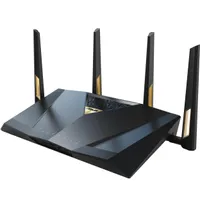
High-end routersprovide faster internet speeds. This means less waiting and smoother streaming. They can handle many devices without slowing down.
Improved coverage and rangemeans your Wi-Fi works well in every room. No more dead spots or weak signals far from the router.
Advanced security featuresprotect your network from hackers and viruses. These routers often include firewalls and regular updates to keep your data safe.
Better device managementlets you control which devices connect. You can set limits, prioritize important devices, and monitor usage easily.
Signs You Need An Upgrade
Slow or unstable connectionscan signal the need for a router upgrade. If your internet drops often or loads pages slowly, your router might struggle to keep up.
Multiple devices strugglingto connect or load data at the same time is a common sign. Older routers may not handle many devices well.
Outdated technologyaffects speed and security. Routers using old Wi-Fi standards can limit performance and leave your network less safe.
Limited router featureslike weak range, no guest network, or lack of parental controls can hurt your experience. Newer models offer better tools for home use.
Choosing The Right Router
Routers come in different types and standards. The most common are Wi-Fi 5 (802.11ac)and Wi-Fi 6 (802.11ax). Wi-Fi 6 is faster and supports more devices. Choose a router that fits your home sizeand device count. Mesh routers are good for large homes with many users. Traditional routers work well for small spaces.
Key features to consider include speed, range, and security options. Look for routers with dual-band or tri-bandto reduce interference. Strong firewalland parental controlsprotect your network. Easy setup and good customer support help too.
| Brand | Model | Features | Price Range |
|---|---|---|---|
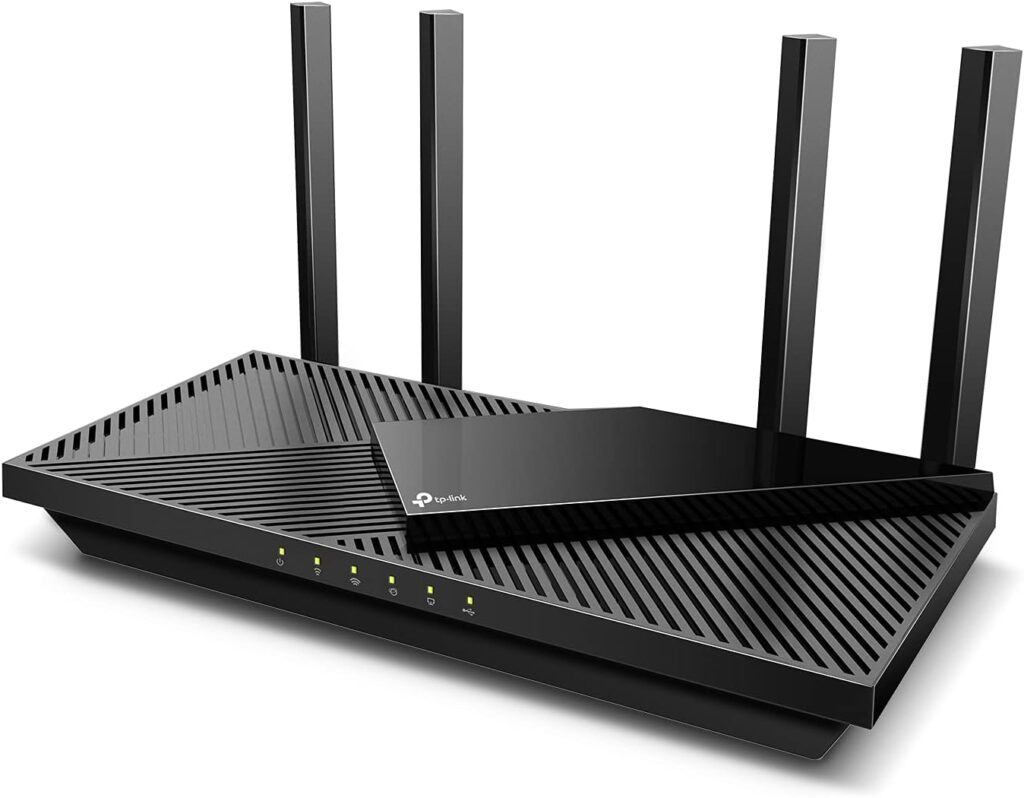
| TP-Link | Archer AX50 | Wi-Fi 6, Good Range, Easy Setup | Mid-range |
| Netgear | Nighthawk RAX45 | Wi-Fi 6, Fast Speed, Strong Security | High-end |
| Asus | RT-AX3000 | Wi-Fi 6, Dual-band, Parental Controls | Mid to High |
Budgeting for a good router means balancing cost and performance. Spending a bit more often means better speed and features. Avoid very cheap routers, as they may limit your internet experience. Think about how many devices connect and what you do online.
Credit: www.highspeedoptions.com
Preparing For The Upgrade
Check your current router’s model and speed to see if upgrade is needed. Note your internet plan speed to match new router capability. Look at the devices connected to your network for compatibility.
Backing up current router settings saves time later. Use your router’s admin page to export settings. This keeps Wi-Fi names and passwords safe.
Think about where to place the new router. Choose a central spot in your home for best signal. Avoid placing it near thick walls or metal objects.
Gather all items before starting the upgrade:
- New high-end router
- Power adapter
- Ethernet cable
- Computer or smartphone for setup
Step-by-step Upgrade Process
Open the box and check all parts are included. Find the router, power adapter, and cables. Place the router in a central spot for best signal.
Unplug the modem’s power. Connect the modem to the router’s WAN port using an Ethernet cable. Power on the modem and wait for it to fully start. Then, plug in and turn on the router.
Open a web browser on your computer or phone connected to the router’s network. Enter the router’s IP address (usually on the label). Log in using default credentials. Change the network name (SSID) and password to something easy to remember but secure.
Check the router’s admin page for firmware updates. Download and install any updates available. This helps fix bugs and improve security.
Run a speed test to check your internet speed. Walk around your home to test signal strength in different rooms. Adjust the router’s antennas or position if needed for better coverage.

Credit: www.expressvpn.com
Optimizing Your New Router
Securing your networkis the first task after setting up your router. Change the default admin password to a strong one. Enable WPA3 encryptionif available. Keep your router’s firmware updated to protect against threats. Turn off features like WPS that can weaken security.
Setting up guest networkslets visitors use the internet without accessing your main devices. This keeps your personal data safe. Give the guest network a separate name and password. Limit its access to local devices.
Prioritizing devices and traffic helps give important gadgets better internet speed. Use Quality of Service (QoS)settings to choose which devices or apps get priority. This is useful for video calls or gaming.
Utilizing advanced features can improve your router’s performance. Enable band steeringto switch devices between 2.4 GHz and 5 GHz bands. Use parental controls to limit kids’ internet time. Explore VPN support for extra privacy.
Troubleshooting Common Issues
Connection problemscan happen due to weak signals or wrong settings. Try moving closer to the router or restarting it. Check cables and make sure they are plugged in well. Sometimes, resetting the router to factory settings helps fix issues.
Firmware update failuresoccur when the update process is interrupted or the file is corrupted. Always download updates from the official website. Use a wired connection to avoid interruptions during updates. Restart the router after the update finishes.
Device compatibilitymeans your devices must support the new router’s features. Older devices may not work well with high-end routers. Check your device’s Wi-Fi version and compare it with the router’s specs. Updating device drivers can improve compatibility.
Performance dropsmight be caused by too many devices connected or interference from other electronics. Limit the number of active devices or change the Wi-Fi channel in the router settings. Keeping the router in an open space helps improve signal strength.
Maintaining Your Router
Regular firmware updateskeep your router safe and fast. These updates fix bugs and add new features. Check your router settings often to see if updates are available. Install them as soon as possible for better performance.
Routine reboots can help clear router memory and fix small issues. Restart your router once a week or after any connection problem. This simple step can improve speed and stability.
Monitoring network health helps find problems early. Use apps or your router’s dashboard to watch for slow speeds or dropped connections. Knowing these signs helps you act before issues get worse.
Consider another upgrade if your router no longer covers your home well or struggles with many devices. Newer models offer better speed, range, and security. Upgrading can save time and frustration.
Frequently Asked Questions
What Are The Benefits Of Upgrading To A High-end Router?
Upgrading to a high-end router improves internet speed, enhances security, and expands coverage. It supports multiple devices efficiently and offers advanced features like parental controls and QoS for better network management.
How Do I Choose The Right High-end Router?
Choose a high-end router based on your internet speed, device count, and coverage needs. Look for features like dual-band or tri-band, MU-MIMO support, and strong security protocols for optimal performance.
Is Upgrading To A High-end Router Worth The Cost?
Yes, upgrading is worth it if you need faster speeds and better reliability. High-end routers handle heavy traffic and provide future-proof technology, making them ideal for smart homes and gaming.
How Do I Set Up A High-end Router After Purchase?
Setting up involves connecting the router to your modem, powering it on, and accessing the setup page via a browser. Follow the manufacturer’s instructions to configure Wi-Fi settings and security options.
Conclusion
Upgrading to a high-end router boosts your internet experience. Faster speeds, better connection. Your online activities become smoother. Streaming and gaming get easier. A high-end router offers advanced features. It improves home network security. Before buying, check compatibility and features.
Consider your internet needs. Choose a router that fits your budget. Installing a new router can be simple. Follow instructions carefully. Enjoy improved connectivity and performance. Your online world becomes more efficient. Investing in a good router pays off. It enhances your digital life.
Happy surfing!