Are you tired of slow internet or limited connectivity when you’re on the go? Using a portable router with your Android device can change the way you stay connected, giving you fast and reliable internet anywhere.
Imagine having a personal hotspot that keeps your phone, tablet, and laptop all online without draining your data plan. In this guide, you’ll discover simple steps to set up and use a portable router with your Android device. Stick with me, and you’ll unlock a smarter, faster way to connect whenever you need it.
Choosing The Right Portable Router
Choosing the right portable router is essential for a smooth Android internet experience. It affects speed, connection stability, and ease of use. A good router fits your needs and works well with your device. Consider several factors before buying to avoid common issues.
Key Features To Consider
- Battery life: Long-lasting power keeps you online for hours.
- Speed: Look for routers supporting fast Wi-Fi standards like 802.11ac or ax.
- Portability: Compact and lightweight models are easy to carry.
- Security: WPA3 encryption protects your data from threats.
- Number of connections: Choose routers that support multiple devices at once.
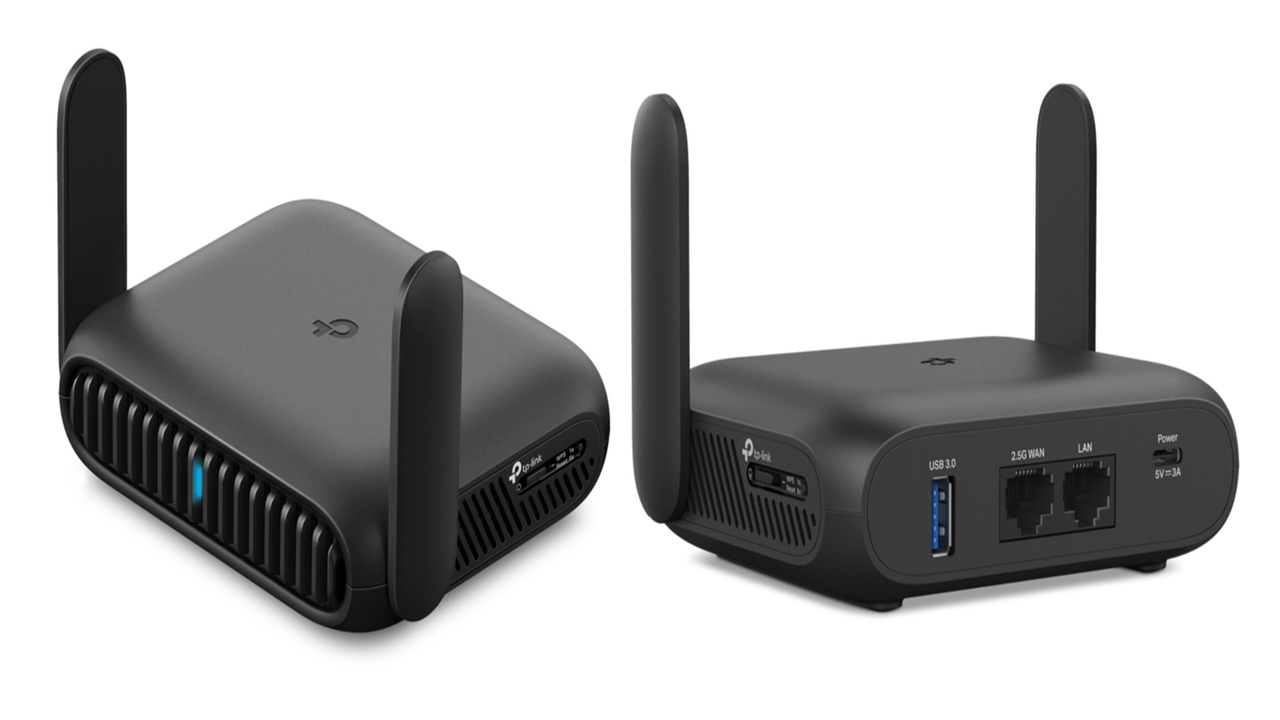
- Additional ports: USB or Ethernet ports add flexibility for wired devices.
Compatibility With Android Devices
Check if the router supports Android devices smoothly. Most routers work with Android, but some offer better app control and setup. A router with a dedicated Android app makes management easier.
Ensure the router supports common Android Wi-Fi bands, like 2.4 GHz and 5 GHz. Dual-band routers offer better speed and less interference. Verify the router’s firmware updates to keep your connection secure and stable.
Top Portable Router Models
| Model | Battery Life | Speed | Special Features |
|---|---|---|---|
| TP-Link M7350 | Up to 10 hours | 4G LTE Cat.7 | Touchscreen, microSD slot |
| Netgear Nighthawk M1 | Up to 24 hours | 4G LTE Cat.16 | Ethernet port, media server |
| Gl.iNet GL-AR750S | Up to 8 hours | Dual-band Wi-Fi AC | Open-source firmware, VPN support |

Credit: mashable.com
Preparing Your Android Device
Getting your Android device ready to connect with a portable router is a straightforward process that sets the stage for smooth internet access on the go. Before plugging in and powering up, you need to make sure your device is compatible and configured correctly. Taking a few moments to prepare your Android will save you from connection headaches later.
Checking Software Requirements
Start by verifying your Android version. Most portable routers work well with Android 6.0 (Marshmallow) and above. You can check this by going to Settings > About Phone > Android Version.
Make sure your device supports Wi-Fi hotspot features and has no restrictions from carriers that might block tethering. If you use a custom ROM or an older device, compatibility might be an issue.
Enabling Necessary Settings
Before connecting, enable Wi-Fi on your Android device. Navigate to Settings > Network & Internet > Wi-Fiand toggle it on. Also, turn on Bluetooth if your portable router supports connections through it.
Don’t forget to allow location access. Some Android versions require location services to be on for Wi-Fi scanning to work properly. This can be found under Settings > Location.
Installing Required Apps
Certain portable routers come with companion apps that enhance control and monitoring. Visit the Google Play Store and install the app recommended by your router’s manufacturer.
These apps often provide features like signal strength indicators, connected device lists, and easy configuration. Installing them beforehand means you won’t have to troubleshoot in the middle of your setup.
Connecting Portable Router To Android
Connecting your portable router to your Android device is a straightforward process that opens up a world of flexible internet access. Whether you’re traveling or managing multiple devices, understanding how to establish this connection ensures you stay online without hassle. Let’s dive into the practical steps to get your Android device linked with a portable router quickly.
Powering On And Initial Setup
Start by powering on your portable router. Most models have a simple power button—press and hold it until the indicator lights up. If it’s your first time using it, you may need to complete an initial setup, often involving connecting to the router’s default network and accessing its configuration page via a web browser.
During this setup, you can customize your network name (SSID) and password. This step enhances security and makes it easier to identify your router among other networks. Have you checked your router’s manual or the label on the device for default login details? That’s where you’ll find the IP address and credentials to start.
Connecting Via Wi-fi
Once your portable router is powered on and configured, head over to your Android device’s Wi-Fi settings. You should see the network name (SSID) you set or the default one listed. Tap on it, enter the password you created, and hit connect.
Successful connection means your Android device is now using the router as its internet gateway. If you experience slow speeds or connection drops, try moving closer to the router or restarting both devices. Have you ever noticed how simple adjustments like this can make a big difference?
Using Usb Tethering
Some portable routers support USB tethering, allowing you to connect your Android device directly via a USB cable. This method can offer a more stable and faster connection compared to Wi-Fi. To use USB tethering, connect your Android device to the router with a compatible USB cable.
After connecting, enable USB tethering on your Android by going to Settings > Network & Internet > Hotspot & tetheringand toggling on USB tethering. Your device will recognize the router as a network interface, and internet access should start immediately. Have you tried USB tethering before? It’s a handy option when Wi-Fi signals are weak or unreliable.
Configuring Router Settings
Configuring your portable router settings is essential for a smooth internet experience on your Android device. Proper setup helps protect your network and keeps your connection stable. This section guides you through important steps to customize your router effectively.
Accessing Router Admin Panel
Start by connecting your Android device to the router’s Wi-Fi network. Open a web browser and enter the router’s IP address, usually 192.168.0.1or 192.168.1.1. You will see a login screen asking for a username and password.
Use the default credentials found on the router label or manual. Common usernames are admin, and common passwords are adminor password. After login, you reach the router’s admin panel.
Setting Up Ssid And Password
Inside the admin panel, locate the wireless settings section. Here, you can change the SSID, which is the network name visible on your Android device.
- Choose a simple and unique name for your network.
- Set a strong password using letters and numbers.
- Avoid simple passwords like “12345678” or “password”.
Save the changes to update your network name and password. This step ensures only authorized users connect to your Wi-Fi.
Adjusting Security Options
Security settings help protect your data and privacy. Find the security section in the admin panel and select the encryption type.
- Choose WPA2or WPA3for strong protection.
- Avoid using WEP, as it is outdated and less secure.
- Enable the firewall option for added safety.
Apply the settings to secure your network from unauthorized access.
Optimizing Performance
Optimizing the performance of your portable router with Android can significantly enhance your internet experience. Simple adjustments and regular maintenance can boost speed, extend battery life, and reduce connection drops. Let’s look at practical ways to get the most out of your device.
Improving Signal Strength
Signal strength directly affects your internet speed and stability. Position your portable router in an open area, away from walls or metal objects that can block the signal. Elevating it on a shelf or near a window often makes a noticeable difference.
Try to keep your router away from other electronic devices that cause interference, like microwaves or cordless phones. Have you ever noticed your connection slowing down in certain rooms? Moving your router or Android device closer can help solve that.
Managing Device Connections
Too many devices connected at once can slow down your network. Regularly check which devices are linked to your portable router through your Android’s settings or the router’s app. Disconnect devices that are no longer in use to free up bandwidth.
Prioritize devices that need the most speed, such as your laptop during work calls, to avoid interruptions. You can also limit background apps on your Android that consume data without you realizing it. Have you tracked your connected devices lately?
Updating Firmware
Firmware updates often include bug fixes and performance improvements. Check your portable router’s settings via your Android device for available updates. Installing the latest firmware ensures your router runs smoothly and securely.
Updates may also improve compatibility with newer devices and fix known issues causing slowdowns. If you’ve experienced unexpected disconnections, an update could be the simple fix. Don’t overlook this easy step in maintaining your portable router.
Credit: www.androidcentral.com
Troubleshooting Common Issues
Troubleshooting common issues with your portable router and Android device can save you a lot of frustration. Problems like unstable connections or slow speeds often have simple fixes. Understanding these issues helps you get back online quickly and stay productive.
Connection Problems
Connection drops are one of the most frequent headaches. Check if your portable router has a strong signal and is within range of your Android device. Sometimes, switching your router’s channel or rebooting the router can restore a stable connection.
If your Android device keeps disconnecting, try forgetting the network and reconnecting. This clears any saved errors. Also, ensure your router’s firmware is up to date; outdated software often causes connection hiccups.
Slow Internet Speeds
Slow speeds can ruin your browsing experience. First, verify if the issue is with your router or your internet service provider by connecting another device. If other devices work fine, focus on your router’s settings.
Reducing the number of devices connected at once can improve speed. Check for background apps on your Android device that might be using data without your knowledge. Sometimes, changing the router’s frequency band from 2.4 GHz to 5 GHz can boost performance.
Router Not Recognized By Android
When your Android phone doesn’t detect the portable router, it can feel like the end of the road. Start by toggling your Android’s Wi-Fi off and on again. If that doesn’t work, reboot your phone to reset its network settings.
Clear the Wi-Fi cache on your Android to remove corrupted files that may block recognition. Also, double-check if the router is broadcasting its SSID (network name). Hidden networks won’t show up unless you manually add them on your device.
Advanced Tips And Tricks
Discover advanced tips for using a portable router with your Android device. These tricks enhance functionality and improve your experience. Let’s dive into these helpful strategies.
Using Vpn On Portable Router
Enhance your security with a VPN on your portable router. A VPN encrypts your internet traffic, protecting your data from threats. Set up a VPN by accessing your router’s settings. Most routers support VPN configurations. Choose a reliable VPN service. Enter the necessary details in the VPN section of your router’s settings. This setup ensures all connected devices benefit from the VPN protection.
Creating Guest Networks
Keep your main network secure by creating guest networks. Guest networks allow visitors to access the internet without accessing your primary network. Go to your router’s settings and find the guest network option. Enable it and set a separate password. This approach prevents guests from accessing your personal files. It’s a great way to manage network security effectively.
Power Saving Techniques
Save power with simple techniques for your portable router. Turn off the router when not in use. This reduces energy consumption. Use the router’s power-saving mode if available. This setting lowers power usage during inactivity. Adjust the wireless signal strength. A lower strength consumes less energy while maintaining connectivity. These steps prolong your router’s battery life and save energy.
Credit: www.inkl.com
Frequently Asked Questions
What Is A Portable Router And Why Use It With Android?
A portable router is a compact device that shares internet wirelessly. Using it with Android allows secure, stable connections anywhere, enhancing mobility and convenience.
How Do I Connect My Android To A Portable Router?
Turn on the portable router and enable its Wi-Fi. On Android, open Wi-Fi settings, select the router’s network, and enter the password to connect.
Can I Use A Portable Router Without Sim On Android?
Some portable routers need a SIM for mobile data. Others can share Wi-Fi or Ethernet connections without SIM cards, compatible with Android devices.
How To Improve Portable Router Speed On Android?
Place the router in an open area, close to your Android device. Avoid interference from walls and other electronics for better speed.
Conclusion
Using a portable router with Android makes internet access easy. You can share Wi-Fi with many devices. Setting it up takes only a few steps. This helps when traveling or at places without good Wi-Fi. Keep your connection stable by placing the router well.
Always secure your network with a strong password. This way, you protect your data and devices. Portable routers add convenience and flexibility for Android users. Try it out and enjoy better internet anywhere you go. Simple, fast, and useful.