Are you struggling to get reliable internet on the go? Using a portable router with a USB modem can be the simple solution you need.
Imagine turning any USB modem into a powerful Wi-Fi hotspot that keeps all your devices connected—whether you’re traveling, working remotely, or just need backup internet at home. In this guide, you’ll discover easy steps to set it up quickly and make the most of your internet connection.
Keep reading, because once you master this, you’ll never worry about losing access again.
Choosing The Right Portable Router
Choosing the right portable router is key for a smooth internet experience. It affects speed, coverage, and device support. Picking a good router ensures your USB modem works well. It also helps keep your connections stable on the go.
Many portable routers offer different features. Some focus on battery life, others on signal strength. Understanding your needs helps find the best match. Consider the places you will use the router most.
Key Features To Look For
- Battery life: Long-lasting power keeps you connected longer.
- Portability: Small and lightweight models are easy to carry.
- Speed support: Choose routers with fast Wi-Fi standards like 802.11ac.
- Security: Look for routers with WPA3 encryption for safer browsing.
- Multiple device support: Ensure it can handle all your gadgets at once.
Compatibility With Usb Modems
Not all portable routers support every USB modem. Check the router’s specifications for compatible modem models. Some routers list supported brands and models clearly.
Look for routers that support your modem’s network type, like 4G or 5G. Confirm the router’s firmware is up to date for best compatibility. This avoids connection issues and slow speeds.
Some routers allow easy modem setup via their app or web interface. This saves time and effort. Compatibility ensures your portable router and USB modem work as a team.

Credit: www.reddit.com
Preparing Your Usb Modem
Preparing your USB modem is essential before connecting it to a portable router. This ensures smooth internet access and avoids connection issues. Take time to check the modem’s compatibility and settings.
Checking Network Requirements
Confirm the USB modem works with your network provider. Some modems support only specific carriers or frequency bands. Verify the network type, such as 3G, 4G, or 5G, matches your modem’s capabilities.
Review your data plan to ensure it supports tethering or hotspot use. Some providers may restrict or charge extra for these features. Check the signal strength in your area for stable connection.
Ensuring Firmware Is Updated
Keep your USB modem’s firmware up to date. Firmware updates fix bugs and improve performance. Visit the manufacturer’s website to download the latest version.
Use the official software tool to install updates safely. Do not disconnect the modem during the update process. Updated firmware helps the modem work better with portable routers.
Connecting Usb Modem To Portable Router
Connecting a USB modem to a portable router allows internet sharing with multiple devices. This setup is simple and useful in places without fixed broadband. The connection process requires a few easy steps.
Physical Connection Steps
- Locate the USB port on your portable router.
- Take the USB modem and plug it firmly into the router’s USB port.
- Check the connection to ensure the modem fits securely.
- Use a USB extension cable if the modem is bulky or hard to fit.
- Ensure the modem’s indicator lights are visible for status checking.
Powering Up The Devices
- Connect the portable router to a power source using its adapter.
- Turn on the router by pressing the power button.
- Wait for the router to recognize the USB modem; lights may blink.
- Turn on the USB modem if it has a separate power button.
- Check the router’s display or app to confirm the modem is active.
- Ensure both devices have stable power to maintain connection.
Configuring Router Settings
Configuring your portable router with a USB modem lets you share internet easily. Access the router’s settings page, connect the USB modem, and select the right network type. Save changes to start using mobile internet on multiple devices.
Configuring your router settings can seem daunting at first, but it doesn’t have to be. With a little guidance, you’ll have your portable router working seamlessly with your USB modem. Dive into this guide to unlock the full potential of your wireless setup.Accessing The Router Interface
To start, you’ll need to access the router’s interface. Connect your computer to the router using an Ethernet cable. Open a web browser and type in the router’s IP address, typically found in the user manual or on the router itself. You’ll be prompted to log in. Use the default username and password, often ‘admin’ for both. If that doesn’t work, refer to the manual or reset the router.Setting Up Internet Connection
Once inside the interface, locate the internet connection settings. This is where you’ll configure the router to recognize your USB modem. Plug the modem into the router’s USB port. Select the connection type that matches your ISP’s requirements. Often, this will be a simple ‘auto-detect’ feature. If prompted, enter any additional details provided by your ISP to establish a connection.Configuring Wireless Network
Now it’s time to set up your wireless network. Head over to the wireless settings section. Choose a network name (SSID) that’s easy to identify but not too revealing of your personal information. Secure your network with a strong password. Opt for WPA2 encryption for the best balance of security and compatibility. Consider hiding your SSID for added privacy if security is a top concern. By following these steps, you’ll have a well-configured portable router that maximizes your USB modem’s capabilities. Have you ever faced challenges in setting up your network? Share your experiences in the comments below!Troubleshooting Common Issues
Troubleshooting common issues with a portable router and USB modem helps keep your connection steady. Problems can stop your internet or slow it down. Understanding simple fixes saves time and frustration.
Many problems come from detection errors, slow speeds, or outdated settings. Checking these areas usually restores full function quickly. Use these tips to identify and solve common issues.
Usb Modem Not Detected
Check if the USB modem is firmly plugged into the router. Try unplugging and plugging it back in.
Restart the router to refresh device detection. Use a different USB port if available.
Make sure the modem is compatible with the router model. Check the router’s manual or website for a list of supported devices.
Update the router’s firmware to improve device recognition. Sometimes, older firmware does not support new modems.
Slow Or No Internet Connection
Verify the USB modem has an active data plan and good signal strength.
Move the router and modem to a place with better network coverage. Avoid areas with thick walls or metal objects.
Limit the number of devices connected to the router. Too many devices can reduce speed.
Restart both the modem and router to clear temporary glitches.
- Check data usage limits or restrictions from your service provider.
- Run a speed test to confirm actual internet speed.
- Try connecting another device to isolate the problem.
Router Reset And Firmware Updates
Reset the router if problems persist after basic troubleshooting. Use a paperclip to press the reset button for 10 seconds.
Resetting restores factory settings and clears errors but erases custom configurations.
Download and install the latest firmware from the router manufacturer’s website. Follow their instructions carefully.
Firmware updates fix bugs and improve performance, including compatibility with USB modems.
After updating, reconfigure your router settings to match your needs.
Optimizing Router Performance
Optimizing your portable router’s performance makes a big difference. It helps you get faster speeds and stronger signals. It also reduces connection drops and delays. Small changes improve your browsing and streaming experience. Focus on where you place the router and how many devices connect. These simple tips keep your network stable and reliable.
Positioning For Best Signal
Place the portable router in a central spot in your home or office. Avoid corners and areas with thick walls. Keep it away from metal objects and electronics that cause interference. Higher spots, like shelves or tables, often provide better coverage. Face the router’s antennas upward or according to the manual. This helps spread the signal evenly in all directions.
Managing Connected Devices
Too many devices can slow down your network. Limit the number of active devices when possible. Disconnect devices not in use to free up bandwidth. Use the router’s settings to prioritize important devices or activities. This ensures smoother video calls or gaming sessions. Regularly check connected devices and remove unknown ones to keep your network secure.
Additional Tips And Best Practices
Using a portable router with a USB modem offers great flexibility and convenience. To get the best performance and security, follow some extra tips and best practices. These small steps help protect your data and extend your device’s usability.
Security Settings
Always set a strong password for your router’s admin panel. Avoid easy passwords like “admin” or “1234”. Use WPA3 or WPA2 encryption to secure your Wi-Fi network. Disable WPS, as it can be vulnerable to attacks. Regularly update the router’s firmware to fix security holes. Limit the number of connected devices to prevent unauthorized access. Turn off remote management unless you need it.
Battery Life Management
Keep your portable router charged before long use. Use power-saving mode if available to extend battery life. Turn off the router when not in use to save energy. Avoid using the router in extreme temperatures, which harm the battery. Carry a power bank for longer trips without power outlets. Monitor battery health and replace it if performance drops significantly.
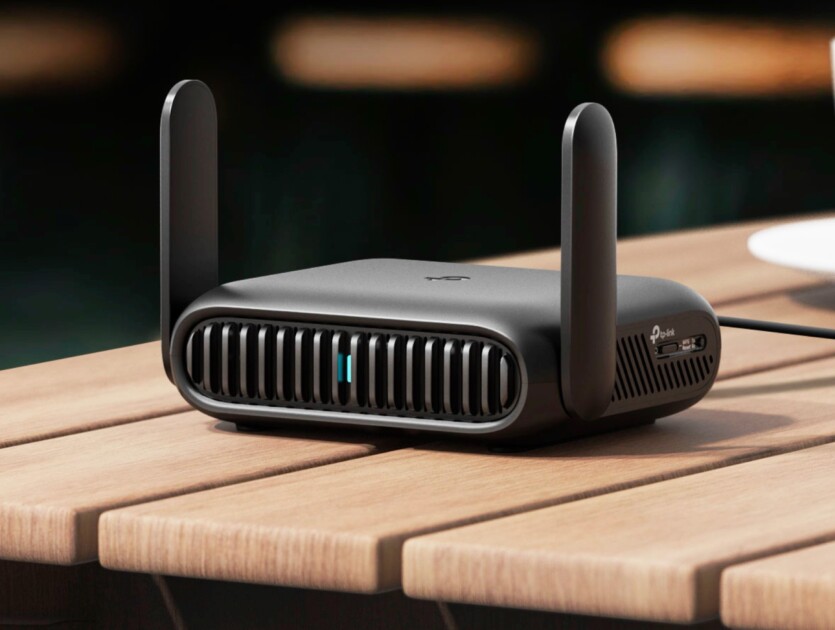
Credit: itc.ua
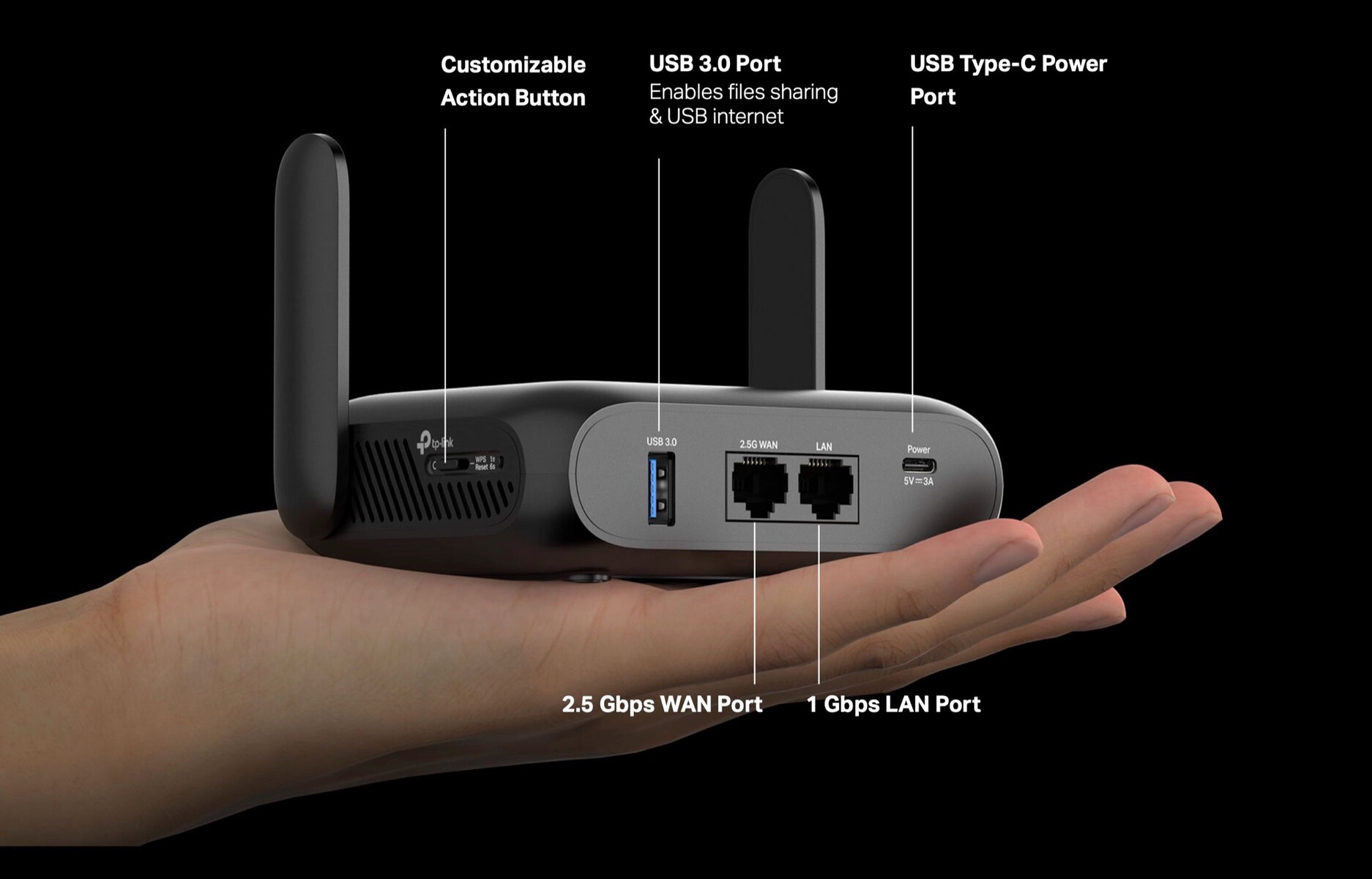
Credit: www.notebookcheck.net
Frequently Asked Questions
What Is A Portable Router With Usb Modem Support?
A portable router with USB modem support allows internet sharing using a USB dongle. It creates a Wi-Fi hotspot anywhere with cellular coverage, perfect for travel or remote work.
How Do I Connect A Usb Modem To A Portable Router?
Plug the USB modem into the router’s USB port. Access the router’s settings via a browser, then configure the modem connection to enable internet sharing.
Can Multiple Devices Connect To A Portable Router With Usb Modem?
Yes, multiple devices can connect simultaneously. The router shares the USB modem’s internet via Wi-Fi, supporting phones, laptops, tablets, and other Wi-Fi-enabled devices.
What Are The Benefits Of Using A Portable Router With Usb Modem?
It offers flexible internet access on the go, supports multiple devices, improves signal stability, and provides better security than direct USB tethering to a single device.
Conclusion
Using a portable router with a USB modem is simple and useful. It helps share internet with many devices easily. Just connect the modem to the router and follow setup steps. This lets you stay online anywhere, anytime. Portable routers add flexibility to your internet use.
Keep your devices connected without hassle. Try it and enjoy better internet access on the go.