Are you tired of your smart home devices losing connection or acting slow? Your mesh WiFi system can be the secret weapon to fix that.
But just having a mesh network isn’t enough—you need the right tips to make it work perfectly for all your gadgets. You’ll discover simple, practical ways to boost your mesh WiFi so every smart device in your home runs smoothly.
Keep reading to unlock the full power of your smart home and say goodbye to frustrating WiFi drops.
Credit: www.engadget.com
Choosing The Right Mesh System
Mesh WiFi systems help smart home devices connect easily. Picking the right system improves your home’s internet.
Think about your devices and home size before buying a mesh network. This guide helps you choose smartly.
Compatibility With Smart Devices
Check if your mesh system works with your smart devices. Some devices need special network settings or bands.
Make sure the mesh supports common smart home protocols like Wi-Fi, Zigbee, or Z-Wave if needed.
- Verify device requirements before purchase
- Choose mesh systems supporting multiple protocols
- Look for easy app or voice control options
Coverage Area And Node Placement
Measure your home’s size to decide how many nodes you need. More nodes mean better coverage in large homes.
Place nodes where devices will use WiFi most, such as living rooms and bedrooms. Avoid walls and metal objects.
- Estimate total square footage
- Place nodes evenly for best signal
- Use extra nodes for hard-to-reach spots
Speed And Bandwidth Considerations
Choose a mesh system that supports the internet speed you pay for. Slow mesh limits smart device performance.
Look for systems with dual-band or tri-band WiFi. Extra bands reduce traffic and keep speeds high.
- Match mesh speed to your internet plan
- Pick tri-band for many devices
- Check if system supports latest WiFi standards

Credit: www.pcmag.com
Optimizing Node Placement
Mesh WiFi systems use multiple nodes to spread internet around your home. Placing these nodes well helps smart devices work better.
Good node placement improves signal strength and covers all rooms evenly. This keeps your smart home devices connected all the time.
Avoiding Interference
Wireless signals can be blocked or slowed by walls and other electronics. Keep nodes away from microwaves, cordless phones, and large metal objects.
Try not to place nodes near thick walls or floors. These materials reduce WiFi signal quality and can cause smart devices to lag.
- Keep nodes clear of metal and mirrors
- Place nodes away from other wireless devices
- Use open spaces instead of enclosed cabinets
Strategic Locations For Coverage
Place nodes in central spots to cover the most area. Put nodes where smart devices are used the most, like living rooms or kitchens.
Try to avoid corners or basements that block signals. Spread nodes evenly through the house for smooth internet everywhere.
- Place one node near the main router
- Put another node on a different floor if needed
- Focus on rooms with many smart devices
Balancing Signal Strength And Speed
Nodes should be close enough to share strong signals but far enough to cover wide areas. Too close means slow speeds; too far means weak signals.
Check the signal bars on your smart devices. Move nodes until you get strong, fast connections in all rooms.
- Keep nodes within 30 feet of each other
- Test WiFi speed in different rooms
- Adjust placement for best balance of speed and coverage
Configuring Network Settings
Configuring your mesh WiFi network helps smart home devices work better. Adjusting settings ensures a stable and fast connection.
Good network setup reduces delays and keeps your devices connected without interruptions.
Setting Up Separate Ssids For Iot
Create a different SSID (network name) just for your smart home devices. This separates them from phones and laptops.
Separate SSIDs help control traffic and improve security by isolating devices from your main network.
- Use a clear name like “Home_IoT” for your IoT network
- Set a strong password to protect your devices
- Keep IoT devices on a different frequency band if possible
Prioritizing Smart Devices
Give important smart devices higher priority in your network. This helps them work smoothly without delays.
Devices like security cameras and smart locks need stable connections at all times.
- Identify key smart devices in your router settings
- Assign higher priority or bandwidth to these devices
- Lower priority for less critical devices like smart bulbs
Enabling Qos Features
Quality of Service (QoS) controls traffic on your network. It ensures smart devices get enough bandwidth.
Turning on QoS reduces lag and keeps your smart home devices responsive.
- Access your mesh router’s settings page
- Find and enable QoS or traffic management
- Set rules to prioritize smart devices or specific apps
Securing Your Mesh Network
Mesh wifi systems help smart homes stay connected all over the house. Keeping these networks safe protects your devices and personal data.
Securing your mesh network means using strong passwords, updating firmware often, and separating guest and smart device access.
Using Strong Passwords
Choose passwords that are hard to guess for your mesh network. Avoid simple words or common phrases. Use a mix of letters, numbers, and symbols.
- Use at least 12 characters
- Include uppercase and lowercase letters
- Add numbers and special symbols
- Change your password regularly
- Do not reuse passwords from other accounts
Regular Firmware Updates
Firmware updates fix security problems and add new features. Check your mesh system’s app or website for updates. Install them quickly to keep your network safe.
| Update Frequency | Why It Matters |
| Monthly | Fixes most bugs and risks |
| After Security Alerts | Protects against new threats |
| When New Features Release | Improves performance and tools |
Segmenting Guest And Iot Networks
Keep your smart home devices on a separate network from guests. This limits access to your main network and protects your data.
- Create a guest network for visitors
- Use a dedicated IoT network for smart devices
- Set different passwords for each network
- Turn off guest network when not in use
- Monitor network activity regularly
Troubleshooting Connectivity Issues
Mesh WiFi systems improve smart home connections. Sometimes devices face connection problems. Fixing these issues helps your smart home work well.
Check your WiFi and devices carefully. Follow simple steps to find and solve problems fast.
Identifying Dead Zones
Dead zones are spots with weak or no WiFi signal. Smart devices in these zones lose connection or work slowly.
Walk around your home with a phone or laptop. Check where WiFi signal gets weak or drops. These spots are dead zones.
- Look for slow internet or no connection on devices
- Use a WiFi analyzer app to see signal strength
- Note areas with poor or no coverage
Restarting Nodes And Devices
Restarting your mesh nodes and smart devices can fix many connection problems. It clears temporary errors and refreshes the network.
Turn off your mesh nodes and smart devices. Wait 30 seconds. Turn them back on in this order: main node, other nodes, then smart devices.
- Power off mesh nodes and devices
- Wait 30 seconds to reset
- Power on main mesh node first
- Power on other nodes next
- Turn on smart home devices last
Updating Device Software
Old software can cause connection issues. Keep your mesh system and smart devices updated. Updates fix bugs and improve WiFi stability.
Check for updates regularly in your device settings or app. Install updates when available. Restart devices after updating.
- Open device or mesh app settings
- Look for software or firmware updates
- Download and install updates
- Restart devices after update
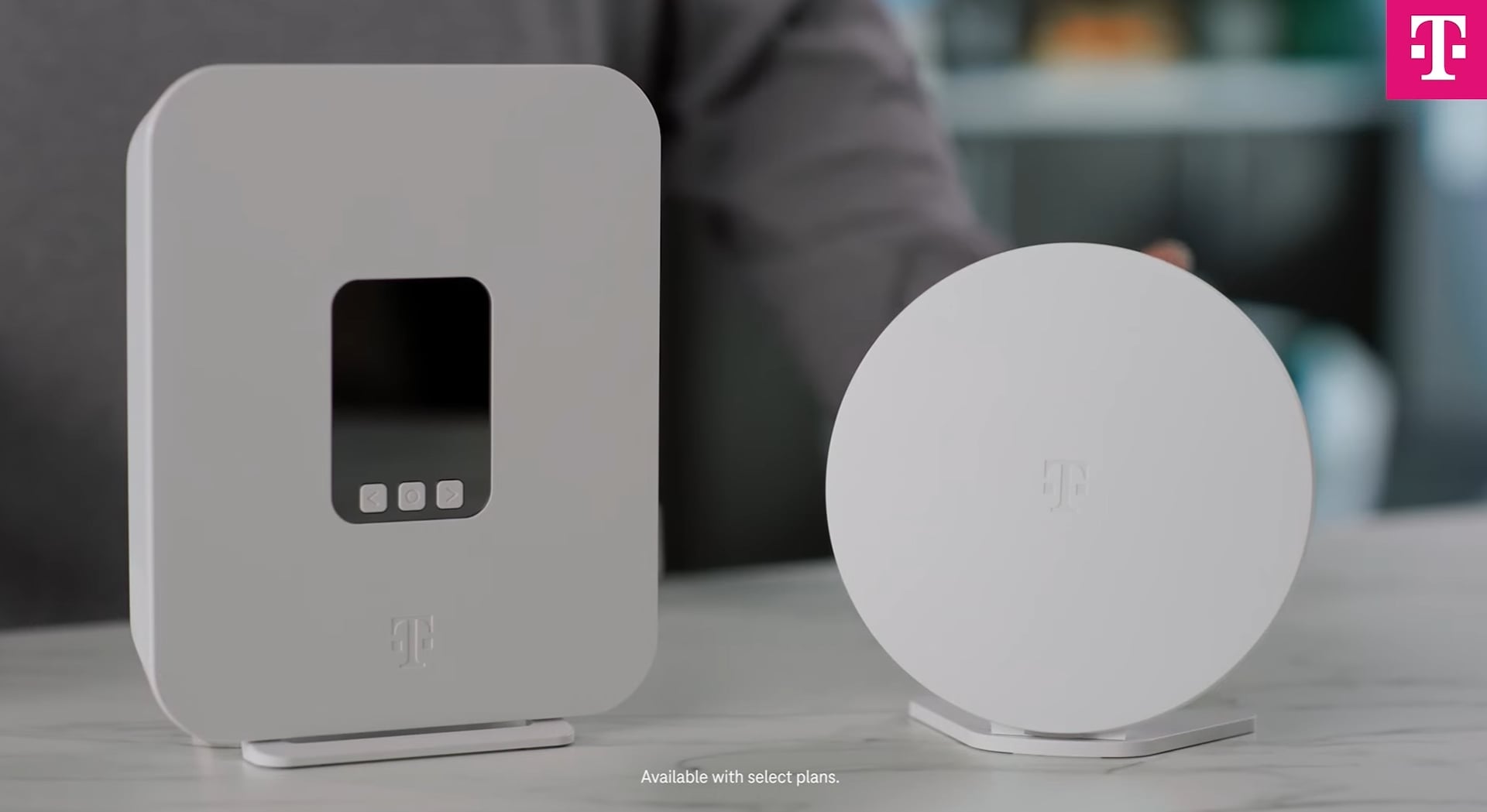
Credit: www.t-mobile.com
Enhancing Performance With Additional Tools
Improving your mesh Wi-Fi setup can make your smart home devices work better. Simple tools and techniques can boost your network’s performance.
Using a few additional tools can help you get the most out of your mesh Wi-Fi. Let’s explore some options that can make a difference.
Using Wi-fi Extenders
Wi-Fi extenders can expand your network’s reach. They help cover areas where the signal is weak. Placing them strategically can enhance connectivity.
- Position extenders halfway between your router and the dead zone.
- Ensure extenders are within the router’s Wi-Fi range.
- Use extenders that match your router’s specifications.
Employing Wired Backhaul
Wired backhaul uses cables to connect your mesh nodes. This reduces wireless interference and boosts network speed.
| Node Type | Connection Benefit |
| Wired Node | Stable and fast connection |
| Wireless Node | Flexible placement |
Leveraging Network Monitoring Apps
Network monitoring apps provide insights into your Wi-Fi performance. They can help identify issues and optimize settings for better connectivity.
Consider using apps like Fing or NetSpot for a detailed analysis of your network. These tools can show which devices use the most bandwidth.
Frequently Asked Questions
What Is Mesh Wifi And How Does It Work?
Mesh WiFi uses multiple nodes to create a seamless network. It ensures strong, consistent signals across your entire home. This setup reduces dead zones and improves connectivity for smart home devices.
How To Optimize Mesh Wifi For Smart Devices?
Place nodes centrally and near smart devices for best signals. Keep firmware updated and separate smart devices on a dedicated network. This minimizes interference and improves overall network performance.
Can Mesh Wifi Support Multiple Smart Home Devices?
Yes, mesh WiFi handles numerous smart devices efficiently. Its distributed nodes balance the load, preventing network congestion. This ensures smooth operation of all your connected gadgets simultaneously.
Why Is Network Security Important For Smart Homes?
Secure networks protect your smart devices from hacking threats. Use strong passwords and enable WPA3 encryption on mesh routers. Regularly update device software to maintain optimal security levels.
Conclusion
Strong mesh WiFi helps smart devices work without interruption. Place nodes near devices for better signals. Keep your network secure with strong passwords. Regularly update your devices and router settings. Avoid walls or large objects blocking signals. Test your connection often to find weak spots.
A smooth WiFi network makes smart homes easier to control. Small changes can improve your whole system’s performance. Stay patient and adjust settings as needed. Good WiFi means smart devices can do their jobs well.