Are you frustrated with slow WiFi that interrupts your work, streaming, or gaming? You might be considering the Orbi Mesh system to boost your home internet speed.
But how do you know if it really delivers the fast, reliable connection you need? This Orbi Mesh WiFi speed test will give you clear answers. By the end, you’ll understand exactly how well Orbi performs in real-life situations—and whether it’s the right choice for your home.
Keep reading to discover the truth about Orbi’s speed and how it can change your internet experience.
Orbi Mesh Wifi Basics
Orbi Mesh Wifi helps spread internet all over your home. It uses several devices that work together. This way, you get strong wifi even in far rooms.
Understanding how Orbi works and its key features can help you get the best speed test results. Let’s explore the basics of Orbi Mesh Wifi.
How Orbi Mesh Works
Orbi Mesh uses a main router and satellite units. These devices form a network that covers your whole house. They connect wirelessly to share internet signals smoothly.
- The main router connects to your modem.
- Satellite units spread wifi to hard-to-reach spots.
- All units talk to each other to keep the connection strong.
- Devices automatically switch to the best signal.
Key Features Of Orbi Systems
Orbi systems come with features that help improve your wifi experience. These features make sure your internet speed stays fast and stable.
| Feature | Description | Benefit |
| Tri-Band Technology | Uses three wifi bands for better traffic handling. | Less congestion, faster speeds. |
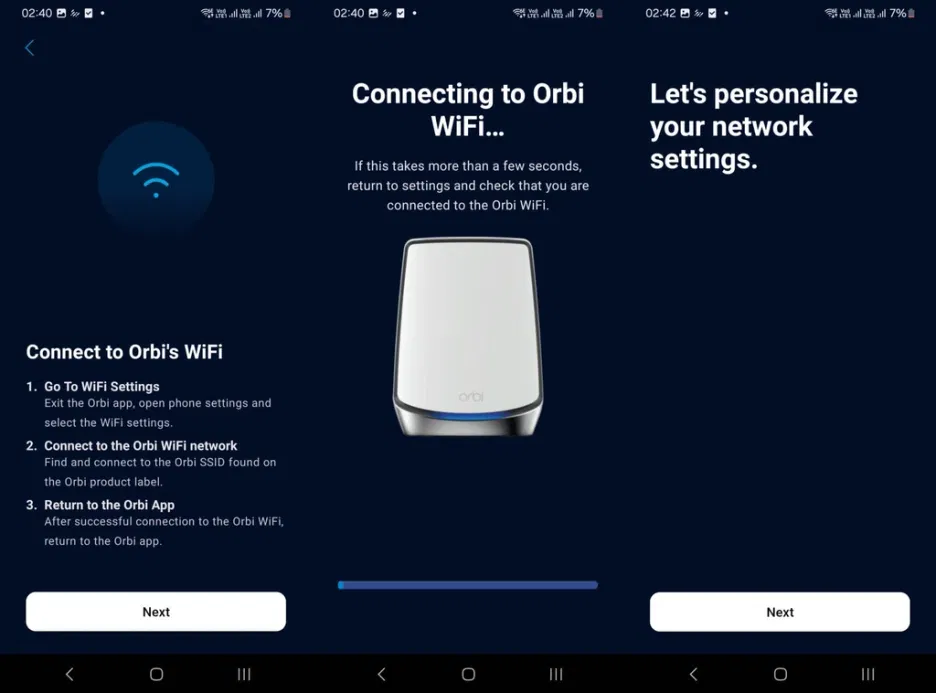
| Easy Setup | Simple app guides you through installation. | Quick and stress-free setup. |
| Guest Network | Separate wifi for visitors. | Protects your main network. |
| Parental Controls | Manage children’s internet use. | Safer online environment. |
Factors Affecting Orbi Speed
Orbi mesh WiFi speed depends on many factors. These factors can change how fast your internet works at home.
Understanding these factors helps you get better WiFi speed and coverage with your Orbi system.
Router Placement Tips
Where you put your Orbi router affects WiFi speed a lot. Place the router in an open space for best results.
Keep the router away from walls and metal objects. These can block the WiFi signal and slow it down.
- Place the router high, like on a shelf
- Keep it near the center of your home
- Avoid corners and thick walls
- Do not hide it inside cabinets
Impact Of Interference
Other electronic devices can interfere with Orbi WiFi signals. This interference lowers your internet speed.
Common sources of interference include microwaves, cordless phones, and baby monitors. Keep Orbi away from these devices.
- Microwaves create strong WiFi noise
- Cordless phones use the same frequency
- Bluetooth devices can cause small interference
- Walls and floors weaken the signal
Device Compatibility
Your devices must support fast WiFi to get good Orbi speeds. Older devices may not work at full speed.
Check if your device supports WiFi 5 or WiFi 6. These standards give better speed and performance.
- WiFi 6 devices get faster speeds
- WiFi 5 is still good for most use
- Older WiFi versions may slow down your network
- Update device drivers for best results
Setting Up Speed Tests
Testing your Orbi Mesh WiFi speed helps find your network’s true performance. Good setup ensures accurate results.
Follow easy steps to pick the right tools and prepare your network. This will give you clear speed data.
Choosing The Right Tools
Use reliable speed test apps or websites. Choose tools that measure both download and upload speeds.
- Speedtest.net by Ookla
- Fast.com by Netflix
- Google’s speed test in search results
- Local network speed test apps
Select a tool that is easy to understand. It should show results in Mbps or Gbps for clarity.
Preparing Your Network
Get your Orbi Mesh ready for testing. This means reducing interference and making settings stable.
| Preparation Step | Why It Matters |
| Restart Orbi router and satellites | Clear memory and refresh connections |
| Disconnect other devices | Prevent other devices from using bandwidth |
| Place device near Orbi unit | Reduce signal loss and interference |
| Turn off VPN or proxies | Get true speed without routing delays |
Follow these steps to get a clear picture of your WiFi speed. Testing in a calm network state gives the best results.
Credit: www.techedt.com
Conducting Orbi Speed Tests
Testing your Orbi mesh WiFi speed helps find the best spots for strong internet. It shows how fast your connection works in different areas.
Speed tests give clear data to improve your network setup. They help you decide where to place Orbi units and whether to use wired or wireless links.
Testing At Different Locations
Test your Orbi speed in rooms far from the main router and near satellite units. This shows how well the mesh covers your home.
- Run speed tests in the living room, bedroom, and kitchen.
- Check speeds near windows or walls to see signal strength.
- Try tests at different times of day for consistent results.
- Record download and upload speeds for each location.
Comparing Wired Vs Wireless Speeds
Wired connections often give faster and more stable speeds than wireless. Testing both helps find the best setup for your devices.
| Connection Type | Average Speed | Stability |
| Wired Ethernet | 300 Mbps | High |
| Wireless 2.4 GHz | 100 Mbps | Medium |
| Wireless 5 GHz | 200 Mbps | High |
Interpreting Speed Test Results
Understanding your Orbi Mesh Wifi speed test results can improve your internet experience. This guide will help you learn what each part of the test means.
Speed tests measure various aspects of your internet connection. Knowing these can help you identify issues and enhance your network performance.
Download Vs Upload Speeds
Download speed shows how fast data comes to your device. It affects streaming and browsing. Higher download speeds mean quicker loading of videos and web pages.
Upload speed measures how fast you send data from your device. It is important for video calls and sending large files. Good upload speeds ensure smooth video chats.
- Download speed is key for streaming and browsing
- Upload speed is crucial for video calls and sending files
Latency And Its Importance
Latency is the delay before data starts moving. It impacts online gaming and video calls. Lower latency means better real-time communication.
High latency can cause lag in games and delays in calls. Understanding latency helps you fix issues with live interactions.
- Low latency is vital for online gaming
- High latency causes delays in video calls

Credit: www.youtube.com
Boosting Orbi Mesh Performance
Orbi Mesh WiFi provides excellent coverage in your home. To ensure top performance, you can take some simple steps. These will help you get the best speeds and connectivity.
Learn how to boost your Orbi Mesh WiFi system. Follow these tips to enjoy smooth and fast internet.
Firmware Updates
Firmware updates are important for your Orbi Mesh. They fix bugs and improve performance. Make sure your system is running the latest version.
Check for updates regularly. You can do this through the Orbi app or web interface. Keeping firmware up to date ensures optimal functionality.
Optimizing Settings
Optimizing your Orbi settings can enhance your WiFi speed. Access the settings through the Orbi app or web portal. Adjusting settings can resolve many issues.
Consider changing WiFi channels to avoid interference. Set up a guest network if needed. This helps in managing network traffic effectively.
- Change WiFi channels to reduce interference
- Set up a guest network for visitors
- Adjust bandwidth settings as required
Adding More Satellites
Adding more satellites can extend your Orbi Mesh coverage. This is useful for larger homes or offices. Place satellites strategically for the best signal.
Ensure there are no obstructions between the router and satellites. This helps in maintaining a strong connection. More satellites mean better coverage and faster speeds.
| Location | Impact |
| Living Room | Central coverage for all devices |
| Upstairs | Boosts signal to upper floors |
| Basement | Improves connectivity in lower levels |
Common Speed Issues And Fixes
Orbi Mesh WiFi can face speed problems that affect your internet experience.
Identifying common issues helps you fix slow connections quickly.
Troubleshooting Slow Connections
Slow WiFi can come from many causes like signal interference or device limits.
- Check that your Orbi router is in an open, central place.
- Restart your router and modem to refresh the network.
- Update your Orbi firmware to the latest version.
- Limit the number of devices using the network at once.
- Use the Orbi app to test your WiFi speed in different rooms.
Dealing With Network Congestion
Network congestion happens when many devices use the internet at the same time.
| Cause | Fix |
| Too many devices connected | Disconnect unused devices or upgrade your plan |
| Heavy internet use (streaming, gaming) | Schedule heavy use during off-peak hours |
| Nearby WiFi interference | Change your WiFi channel in Orbi settings |
| Old router hardware | Replace with a newer Orbi model |

Credit: dongknows.com
Comparing Orbi With Other Mesh Systems
Orbi mesh WiFi is popular for home networks. Many users want to know how it compares to other mesh systems. This comparison looks at speed and value for money.
We will check speed benchmarks and cost efficiency. This helps you decide the best mesh WiFi for your needs.
Speed Benchmarks
Orbi offers strong performance with high data rates. It uses tri-band technology to keep speeds fast even with many devices connected.
| Mesh System | Max Speed (Mbps) | Latency (ms) | Coverage (sq ft) |
|---|---|---|---|
| Orbi | 1200 | 15 | 5000 |
| Google Nest Wifi | 900 | 20 | 4400 |
| Eero Pro 6 | 1000 | 18 | 4500 |
| TP-Link Deco X60 | 1100 | 17 | 4800 |
Value For Money
Choosing a mesh system means thinking about price and features. Orbi is often priced higher but offers strong coverage and fast speeds.
- Orbi provides easy setup and good app support
- Some competitors cost less but have lower max speeds
- Google Nest Wifi offers simple design and moderate price
- Eero Pro 6 balances speed and price well
- TP-Link Deco X60 delivers good value with solid features
Frequently Asked Questions
What Affects Orbi Mesh Wifi Speed Test Results?
Orbi mesh WiFi speed can be affected by distance, interference, device capability, and network congestion. Physical barriers like walls also reduce signal strength. Testing near the Orbi unit yields the best speed results. Always test multiple locations for accurate performance insights.
How To Perform An Orbi Mesh Wifi Speed Test?
Use a reliable speed test app or website while connected to your Orbi WiFi. Test speeds near the router and at distant nodes. Run multiple tests at different times for consistent results. Ensure no other devices heavily use bandwidth during testing.
Why Is Orbi Mesh Wifi Speed Slower Than Expected?
Slower speeds can result from interference, outdated firmware, or poor placement of Orbi units. Network congestion and connected device limits also impact speed. Updating firmware and optimizing router placement often improves performance. Check device compatibility with Orbi’s maximum speeds.
Can Orbi Mesh Wifi Speed Match My Isp Plan?
Orbi mesh WiFi can deliver speeds close to your ISP plan if properly set up. Signal strength, device capability, and network traffic influence actual speeds. For best results, place nodes strategically and keep firmware updated. Testing speeds regularly ensures you get expected performance.
Conclusion
The Orbi Mesh Wifi speed test shows strong and steady results. It delivers good coverage across large areas. Speeds remain consistent even in busy homes. Setup is simple and user-friendly. Small drops in speed rarely affect daily use. This system suits families and small offices well.
Reliable internet makes streaming and browsing easy. Overall, Orbi Mesh Wifi offers solid performance worth considering.