Are you tired of lag and slow connections ruining your gaming experience? Setting up a tri band router could be the game-changer you need.
This powerful device helps you connect multiple devices smoothly while keeping your gaming fast and uninterrupted. In this guide, you’ll discover how to set up your tri band router step-by-step, so you can enjoy smoother gameplay, lower ping, and a stronger connection.
Ready to level up your gaming setup? Let’s dive in.
Choosing The Right Tri Band Router
Choosing the right tri band router matters for a smooth gaming experience. It helps reduce lag and keeps your connection steady. A good router balances speed, coverage, and device management well. This choice can make online play more fun and less frustrating. Here is what to focus on when picking a tri band router for gaming.
Key Features For Gaming
- High speed with at least 1 Gbps bandwidth for fast data transfer.
- Low latency to reduce delays during gameplay.
- Multiple bands to separate gaming traffic from other devices.
- Quality of Service (QoS) to prioritize gaming packets over others.
- Strong Wi-Fi coverage to avoid dead zones in the gaming area.
- Easy setup and user-friendly interface for quick configuration.
- Support for the latest Wi-Fi standards like Wi-Fi 6 or Wi-Fi 6E.
Top Models To Consider
| Model | Speed | Key Features | Price Range |
|---|---|---|---|
| ASUS ROG Rapture GT-AX11000 | Up to 11,000 Mbps | Advanced QoS, Gaming port, Wi-Fi 6 | High |
| Netgear Nighthawk XR500 | Up to 2,600 Mbps | Geo-filtering, QoS, Low latency | Mid |
| TP-Link Archer C5400X | Up to 5,400 Mbps | Dynamic QoS, Tri-band, Strong coverage | Mid to High |
| Linksys WRT32X | Up to 3,200 Mbps | Gaming optimized, Killer Prioritization Engine | Mid |
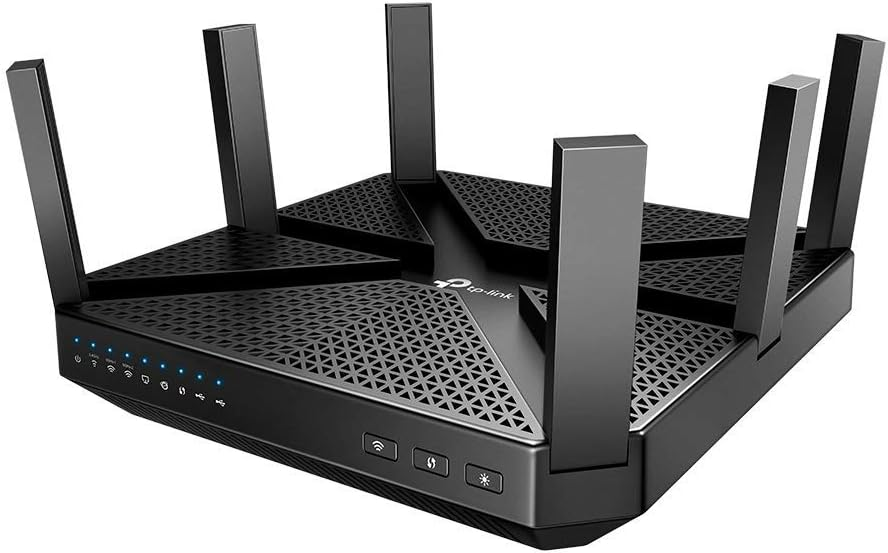
Credit: blog.jazzcybershield.com
Setting Up Your Router
Setting up your tri-band router correctly is crucial for getting the best gaming experience. It’s not just about plugging in cables; it’s about making sure every connection and setting works together to reduce lag and keep your gameplay smooth. Let’s break down the essential steps to get your router ready for action.
Connecting Hardware
Start by placing your router in an open area, ideally elevated and away from thick walls or metal objects. This helps the signal reach your gaming devices without interference. Connect the power adapter to the router and plug it into an outlet.
Next, connect your modem to the router’s WAN or Internet port using an Ethernet cable. This link allows your router to access the internet. If you’re using wired connections for gaming, plug your gaming PC or console into one of the router’s LAN ports with another Ethernet cable.
Have you noticed how a simple cable swap or repositioning can instantly improve your connection? Sometimes, the right hardware setup alone can reduce frustrating lag spikes.
Accessing The Router Interface
Once the hardware is connected, you need to configure your router through its interface. Open a web browser on a device connected to the router’s network and enter the router’s IP address, usually something like 192.168.1.1or 192.168.0.1. This opens the login page.
Use the default username and password found on the router’s label or manual to log in. After logging in, you’ll see the router’s dashboard where you can adjust settings. It’s tempting to skip this part, but customizing your router settings can make a huge difference in gaming performance.
Try exploring the interface and look for options like Quality of Service (QoS) or band steering to prioritize your gaming devices. Have you ever checked what settings your router offers? You might find features that directly improve your gaming speed and stability.
Optimizing Network Settings
Optimizing network settings is key for smooth gaming with a tri band router. A well-tuned network reduces lag and boosts connection stability. It lets your devices communicate faster and more efficiently. Simple changes in your router settings can make a big difference.
Configuring Ssids And Bands
Set unique names for each band to identify them easily. Assign devices to bands based on their needs:
- Use 2.4 GHz for devices far from the router.
- Use 5 GHz bands for gaming devices close to the router.
This separation helps reduce interference and balances network traffic. It improves speed and connection quality for gaming.
Enabling Quality Of Service (qos)
QoS prioritizes gaming traffic over other data types. It reduces lag by giving games faster access to bandwidth. Enable QoS in your router settings and assign high priority to gaming devices or apps. This ensures smooth gameplay even with other devices online.
Adjusting Channel Settings
Select the best wireless channel to avoid interference. Use tools or apps to find less crowded channels. Manually set your router to those channels on each band. This reduces connection drops and improves signal strength for gaming.

Credit: device.report
Enhancing Speed And Stability
Tri band routers reduce lag by spreading devices across three bands, improving speed and connection stability. This setup keeps your gaming smooth and uninterrupted.
Enhancing speed and stability in a tri-band router setup for gaming is like tuning an engine for top performance. As gaming demands peak, a well-configured router becomes your best ally. Let’s dive into some actionable steps to ensure your gaming sessions are smooth and uninterrupted.Firmware Updates
Keeping your router’s firmware up-to-date is crucial for optimal performance. Manufacturers frequently release updates to fix bugs, enhance features, and improve security. Check your router’s admin page regularly and apply updates promptly. Imagine missing out on a critical software update that could boost your gaming speeds. Don’t let that happen to you. Set a monthly reminder to check for firmware updates.Positioning Your Router
The position of your router significantly impacts signal strength. Place it in a central location, elevated from the ground, and away from walls and obstructions. This ensures even distribution of the Wi-Fi signal across your gaming space. Consider my experience: I moved my router from a corner room to the living room, and my connection improved dramatically. Experiment with different placements to find the sweet spot.Reducing Interference
Interference can be a silent killer of your internet speed. Devices like microwaves, cordless phones, and Bluetooth gadgets can disrupt your Wi-Fi signal. Minimize interference by keeping your router away from such devices. Have you ever noticed a lag spike when someone uses the microwave? It’s real. Use dual-band or tri-band routers to segregate devices and reduce interference, ensuring your gaming experience remains uninterrupted. By focusing on these aspects, you can transform your gaming experience. What’s one change you’re eager to try with your router setup?Advanced Tips For Lag-free Gaming
For smooth gaming, reducing lag is essential. A tri-band router helps, but extra steps improve performance. These tips focus on using your router’s full power. They keep your connection fast and stable during intense gaming sessions.
Prioritizing Gaming Devices
Assign high priority to your gaming devices in the router settings. This makes sure your console or PC gets bandwidth first. It lowers delays and stops other devices from slowing your game. Use Quality of Service (QoS) features to set priorities easily. Select your gaming device and boost its traffic priority.
Using Ethernet Over Wi-fi
Ethernet connections offer faster and more stable links than Wi-Fi. Connect your gaming device directly to the router with a cable. This cuts down on interference and signal drops. Ethernet reduces lag spikes and packet loss. A wired setup is best for serious gamers who want steady speeds.
Monitoring Network Traffic
Track your network use to spot problems early. Many tri-band routers have built-in traffic monitors. Watch for devices or apps that use too much bandwidth. Stop or limit background downloads during gameplay. This keeps your connection clear and prevents slowdowns. Regular checks help maintain the best gaming experience.
Troubleshooting Common Issues
Troubleshooting common issues with your tri band router can save you hours of frustration, especially when gaming is involved. These routers are designed to boost performance, but even the best devices encounter hiccups. Identifying and fixing problems like connection drops, slow speeds, and latency can dramatically improve your gaming experience.
Dealing With Connection Drops
Connection drops often happen when your router is overloaded or placed too far from your gaming setup. Try moving your router to a central location free of physical obstructions. Walls, furniture, and even microwaves can interfere with the signal.
Check if your firmware is up to date. Manufacturers frequently release updates that fix bugs causing disconnections. Another useful tip is to assign static IP addresses to your gaming devices to avoid conflicts that lead to drops.
Fixing Slow Speeds
Slow speeds can ruin your game’s responsiveness. Start by checking which devices are connected to your network. Too many devices streaming or downloading can hog bandwidth and slow you down.
Using the tri band router’s dedicated gaming band for your console or PC can help. Also, consider changing your router’s channel to one with less interference from neighbors. Many routers have a built-in tool to scan for the best channel automatically.
Resolving Latency Problems
Latency is the enemy of smooth gaming. High ping times often come from network congestion or poor routing. Connect your gaming device via Ethernet when possible; wired connections reduce latency significantly compared to Wi-Fi.
If Ethernet isn’t an option, prioritize your gaming traffic in the router’s Quality of Service (QoS) settings. This ensures your game data gets ahead of less important traffic. Have you checked if your ISP’s DNS servers are adding delay? Switching to faster DNS providers like Google or Cloudflare can trim milliseconds off your ping.

Credit: www.canbuyornot.com
Frequently Asked Questions
What Is A Tri Band Router For Gaming?
A tri band router uses three separate frequency bands to reduce congestion. It improves gaming by providing faster, stable connections and less lag. Gamers benefit from dedicated bands for devices, ensuring smooth online gameplay without interruptions.
How To Set Up A Tri Band Router For Gaming?
Connect your tri band router to the modem, then access its admin panel via a browser. Configure SSIDs for each band and enable QoS settings to prioritize gaming traffic. Update firmware to enhance performance and reduce latency during online gaming.
Why Choose Tri Band Routers Over Dual Band For Gaming?
Tri band routers offer an extra 5GHz band, reducing network traffic on each band. This prevents interference and ensures lower ping times, crucial for gaming. They handle multiple devices better, providing a consistent, fast connection for multiplayer and streaming.
Can Tri Band Routers Improve Online Gaming Speed?
Yes, tri band routers enhance gaming speed by distributing devices across three bands. This reduces network congestion and interference, resulting in faster data transfer. Gamers experience smoother gameplay with fewer delays and packet losses.
Conclusion
Setting up a tri band router can improve your gaming experience. It reduces lag by managing traffic on different bands. You get faster speeds and a stable connection. This helps avoid interruptions during important game moments. Remember to place your router in a central spot.
Secure your network with a strong password. Regularly update your router’s firmware for best results. These simple steps make gaming smoother and more fun. Try these tips to enjoy better online play today.