Setting up a tri band router for your office can transform the way you work every day. Imagine having lightning-fast internet with fewer interruptions, even when multiple devices are connected.
You might be wondering how to get this powerful setup working smoothly without hassle. This guide is designed just for you—to make the process simple and effective. By the end, you’ll have a clear path to a stronger, more reliable office network that keeps your team connected and productive.
Ready to unlock your office’s full potential? Let’s dive in.
Benefits Of Tri Band Routers
Tri band routers offer several key benefits for office environments. They provide faster internet speeds, better handling of many devices, and less network traffic. These advantages help maintain smooth and reliable connectivity for all users.
Enhanced Wifi Speed
Tri band routers use three separate wireless bands. This setup allows more data to flow at once. It increases overall WiFi speed, which means faster downloads and uploads. Offices with many users can enjoy smooth video calls and quick file sharing.
Reduced Network Congestion
Network congestion happens when many devices use the same channel. Tri band routers split devices across three bands. This reduces crowding and interference. It helps prevent slowdowns and keeps connections stable even during busy times.
Improved Device Connectivity
Offices often have many WiFi devices active simultaneously. Tri band routers support more devices without losing performance. Each device connects to the best available band. This ensures reliable connections and fewer dropouts for all users.
Choosing The Right Tri Band Router
Choosing the right tri band router is key for a smooth office network. It helps manage many devices without slowing down. The right choice boosts productivity and keeps connections stable. Consider several factors before buying to ensure the router fits your office needs.
Key Features To Consider
Look for routers with fast speeds, strong signals, and multiple antennas. Tri band routers offer three separate bands to reduce traffic jams. Features like Quality of Service (QoS) prioritize important tasks. Security options such as WPA3 protect your office data. Easy setup and management tools save time and effort.
Compatibility With Office Devices
Check if the router supports all office devices. This includes laptops, smartphones, printers, and smart office tools. Make sure it handles both Wi-Fi 5 and Wi-Fi 6 devices. Compatibility avoids connection issues and slow speeds. It also ensures smooth communication between devices.
Budget And Brand Options
Set a budget before shopping for a tri band router. Prices vary based on features and brand reputation. Trusted brands offer reliable performance and good support. Compare options within your price range. Choose one that balances cost, quality, and features for your office.
Preparing For Setup
Preparing your tri band router for office setup ensures smooth installation. This stage covers basic checks and organizing needed details. Proper preparation saves time and avoids common issues during setup.
Checking Internet Connection
Confirm your office has an active internet service. Test connection using a wired device like a laptop. Check for consistent speed and stability. Contact your internet provider if problems appear.
Positioning The Router
Choose a central spot in the office for the router. Avoid placing it near thick walls or metal objects. Keep the router elevated, on a desk or shelf. This placement improves signal range and strength.
Gathering Necessary Information
Collect all details needed for setup in one place. Include your internet account username and password. Have the router’s default login credentials ready. Note down any specific network names or settings required.

Credit: www.amazon.ca
Step-by-step Setup Process
Begin by connecting the tri-band router to your modem and power source. Access the router’s settings through a web browser to configure the network name and password. Finally, test the connection to ensure all bands work smoothly for your office devices.
Setting up a tri-band router for your office can seem daunting, but breaking it down into simple steps makes it manageable. With the right approach, you can ensure a smooth and secure network experience. Let’s walk through the setup process to get your office connected efficiently.Connecting Hardware Components
Start by unpacking your router and all its components. You’ll usually find an Ethernet cable, a power adapter, and the router itself. Connect the router to your modem using the Ethernet cable, and plug in the power adapter to an electrical outlet. Ensure all cables are snugly connected. A loose connection can cause frustrating network issues later. Once everything is connected, power on the router and wait for the indicator lights to stabilize.Accessing Router Admin Panel
With the hardware connected, you’ll need to access the router’s admin panel. Use a computer or smartphone connected to the network. Open a web browser and enter the router’s IP address (often found on the router’s label). You’ll be prompted to log in. Use the default username and password, which are usually ‘admin’ and ‘password’. It’s a good idea to change these credentials for security purposes once you’re logged in.Configuring Ssids And Passwords
Now, it’s time to configure your network’s name and password. Navigate to the wireless settings section in the admin panel. Here, you can set up unique SSIDs for each band – this can help manage network traffic and device compatibility. Choose strong, memorable passwords for each SSID. A mix of letters, numbers, and symbols makes it harder for unauthorized users to access your network. Double-check your settings before moving on.Setting Up Security Protocols
Security is crucial for your office network. Enable WPA3 encryption if your router supports it, as it’s the most secure protocol available. Otherwise, WPA2 is a solid alternative. Consider setting up a guest network to keep your main network safe from visitors. This way, you can provide internet access without exposing sensitive data. Regularly update your router’s firmware to protect against vulnerabilities. Think about how much easier your workday will be with a reliable network. Following these steps ensures a secure and efficient setup, letting you focus on what truly matters: running your business.Optimizing Router Settings
Optimizing your tri band router settings enhances your office network’s speed and reliability. Adjusting key settings reduces interference, manages traffic, and improves security. Small tweaks make a big difference in daily performance.
Channel Selection For Minimal Interference
Choosing the right channel helps avoid signal overlap from nearby networks. Use channels with less traffic to reduce slowdowns and disconnects. Tri band routers offer multiple channels on 2.4GHz and 5GHz bands. Scan your environment to find the clearest channels and switch to them.
Quality Of Service (qos) Settings
QoS controls which devices or applications get priority on the network. Assign higher priority to video calls, file sharing, or important tasks. This prevents lag during meetings or large data transfers. Set rules in your router’s dashboard to balance bandwidth among users effectively.
Firmware Updates
Keep your router’s firmware up to date for better performance and security. Updates fix bugs and add new features. Check the manufacturer’s website or your router’s interface regularly. Install updates as soon as they are available to maintain a stable network.

Credit: www.youtube.com
Troubleshooting Common Issues
Setting up a tri-band router for your office can boost your network’s performance, but sometimes issues pop up that slow you down. Troubleshooting these common problems quickly is key to keeping your office productive. Let’s look at some frequent challenges and practical ways to fix them.
Slow Wifi Speeds
Slow WiFi speeds often frustrate office teams relying on fast connections. Start by checking if your router’s firmware is up to date; outdated software can drag performance down.
Also, consider the placement of your router. Walls, furniture, and electronic devices can block signals. Try moving your router to a central, elevated spot for better coverage.
Have you noticed certain times of day when speeds drop? This might mean network congestion. Limit bandwidth-heavy activities or prioritize important devices using Quality of Service (QoS) settings.
Connectivity Drops
Frequent disconnects interrupt workflow and cause delays. One common cause is interference from other wireless devices like cordless phones or microwaves. Check your router’s channel settings and switch to a less crowded channel to reduce interference.
Another culprit could be overheating. If your router feels hot to the touch, ensure it has enough ventilation and isn’t stacked with other devices.
Power cycling your router can also clear temporary glitches. Have you tried unplugging it for 30 seconds and plugging it back in? This simple step often restores stable connections.
Device Compatibility Problems
Not all devices play nicely with tri-band routers right away. Older laptops or smartphones might only support single or dual-band networks, causing connection issues.
Check if your devices support the router’s 5GHz or 6GHz bands. If not, connect those devices to the 2.4GHz band for better compatibility.
Sometimes, updating your device’s network drivers can solve compatibility problems. Don’t overlook this step—it helped me fix a stubborn tablet that wouldn’t connect.
Maintaining Your Tri Band Network
Maintaining your tri band network is essential to keep your office running smoothly. Regular care ensures strong signals and secure connections for all devices. Without proper upkeep, network issues may slow down work and cause frustration.
Tri band routers handle multiple devices and high traffic well. This makes them perfect for busy offices. Proper maintenance keeps the router efficient and reliable.
Regular Security Checks
Security is crucial for office networks. Change passwords often to prevent unauthorized access. Use strong passwords with letters, numbers, and symbols. Update your router’s firmware regularly to fix security gaps. Disable remote management unless absolutely needed. Enable network encryption like WPA3 for better protection.
Performance Monitoring Tools
Use performance tools to track your network’s health. These tools show device connections and data usage. Monitor signal strength and identify slow spots in the office. Set alerts for unusual activity or drops in speed. Tools may include apps from your router’s brand or third-party software.
When To Upgrade Your Router
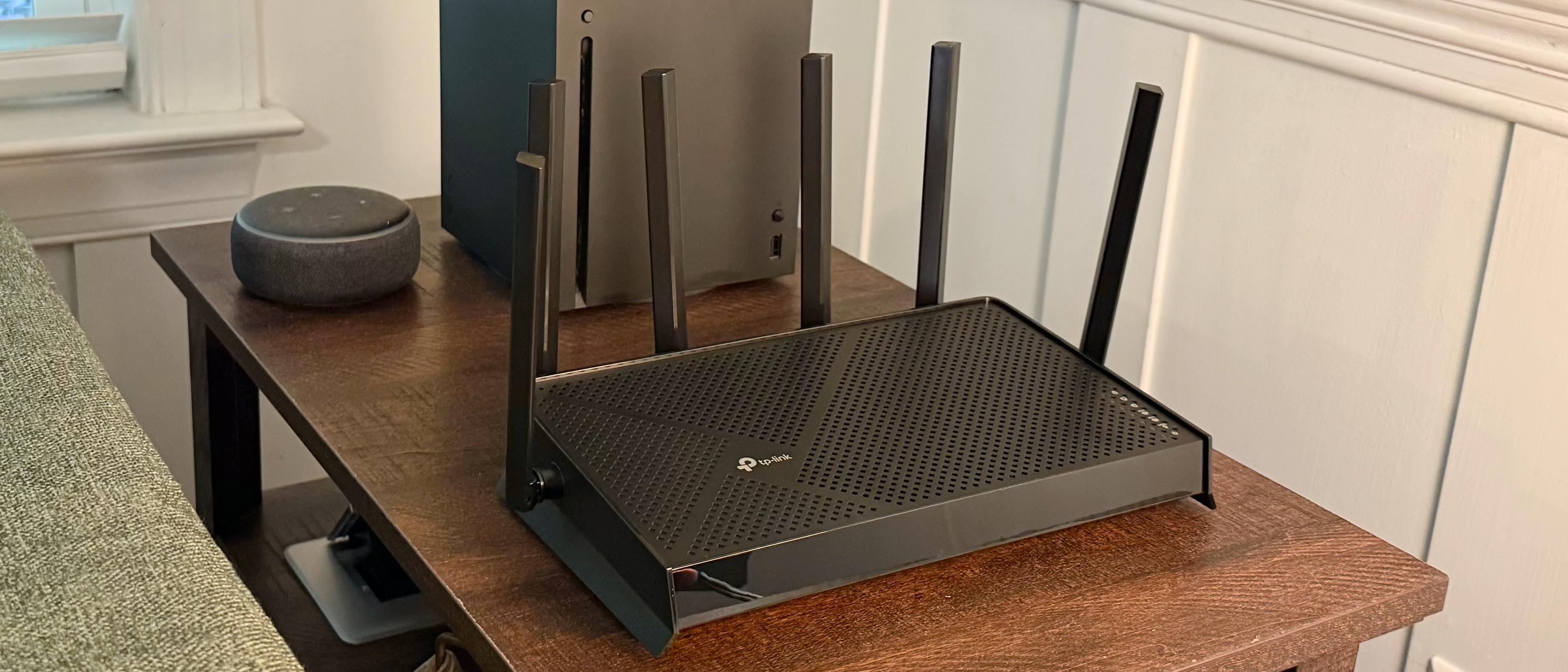
Upgrade your router if speeds slow despite maintenance. New devices may need more bandwidth than old routers support. Look for routers with the latest Wi-Fi standards like Wi-Fi 6. Replace equipment if security updates are no longer available. A new router improves network stability and speed for the office.
Credit: www.tomshardware.com
Frequently Asked Questions
What Is A Tri Band Router And Why Use It In Office?
A tri band router has three separate Wi-Fi bands for better speed. It reduces congestion and supports multiple devices efficiently. This is ideal for offices with many users and smart devices needing stable, fast connections.
How To Set Up A Tri Band Router For Office?
Connect the router to the modem and power it on. Access the router’s web interface via IP address. Follow the setup wizard to configure SSIDs, passwords, and security settings for all three bands. Save settings and test connectivity.
Can Tri Band Routers Improve Office Wi-fi Speed?
Yes, tri band routers improve speed by distributing devices across three bands. This reduces interference and congestion, providing faster and more stable connections for office tasks and video conferencing.
Is Tri Band Router Setup Complex For Non-tech Users?
No, most tri band routers offer user-friendly setup wizards. Clear instructions guide users step-by-step to configure the network without technical expertise. Support resources and apps simplify the process further.
Conclusion
Setting up a tri band router can boost your office Wi-Fi speed. It helps many devices connect without slowing down. Follow the steps carefully for best results. This setup reduces interruptions and keeps work smooth. A strong network supports calls, emails, and online tasks well.
Keep your router updated and secure for safety. Good internet means better teamwork and less waiting. Start your setup today for a faster, reliable office connection.