Setting up your smart home can feel overwhelming, especially when it comes to getting the right Wi-Fi connection. A tri band router setup might be the game-changer you need.
Imagine your devices running smoothly, without constant buffering or dropped signals. In this guide, you’ll learn how to set up a tri band router that keeps every smart gadget in your home connected and working perfectly. Ready to boost your smart home experience?
Let’s dive in and make your network faster, stronger, and smarter.

Credit: www.amazon.ca
Benefits Of Tri Band Routers
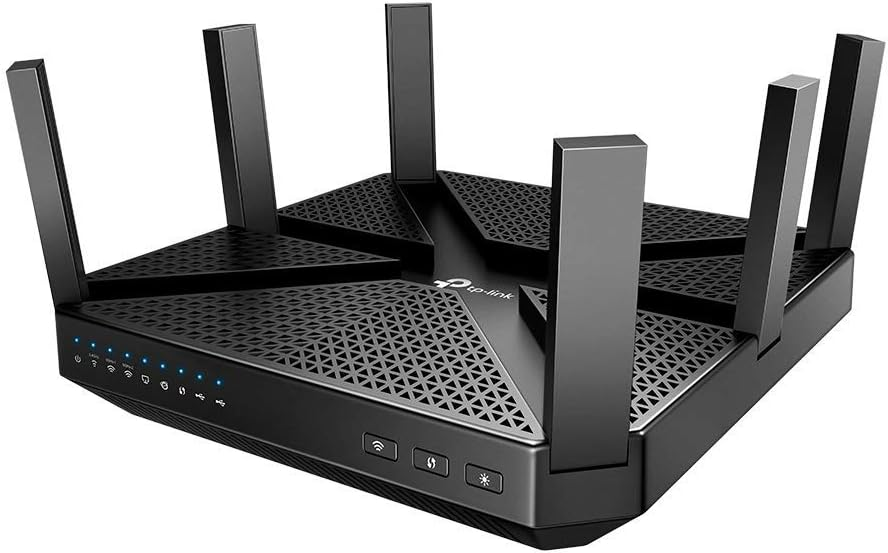
Tri band routers offer several benefits for smart homes. They provide better internet speed and support many devices without slowing down the network. These routers help create a smoother online experience for all users. They are ideal for homes with many smart devices and heavy internet use.
Enhanced Speed And Performance
Tri band routers have three separate wireless bands. This design allows faster data transfer and better overall speed. One band is usually for older devices, while the other two provide high-speed connections. This setup reduces slowdowns during streaming, gaming, or video calls.
Reduced Network Congestion
Multiple bands prevent traffic jams on the network. Devices connect to different bands, spreading out the data load. This balance helps avoid interference and keeps the internet stable. It is especially useful in busy homes with many connected gadgets.
Improved Device Connectivity
Tri band routers support more devices at once. Each device can connect to the best band based on its needs. This flexibility improves connection quality and reduces dropouts. Smart home systems benefit from steady connections to work smoothly.
Credit: blog.jazzcybershield.com
Choosing The Right Tri Band Router
Choosing the right tri band router is crucial for creating a smart home network that runs smoothly and efficiently. With so many options available, it’s easy to feel overwhelmed. But focusing on a few key factors can help you select a router that meets your needs without causing frustration.
Key Features To Look For
Start by checking the router’s speed and range capabilities. Tri band routers typically offer one 2.4 GHz band and two 5 GHz bands, which help reduce congestion and improve overall performance. Look for models with advanced features like MU-MIMO and beamforming to ensure multiple smart devices can connect simultaneously without lag.
Also, consider routers with robust security options such as WPA3 encryption and regular firmware updates. These features protect your smart home from cyber threats. A user-friendly app for easy setup and management can save you time and headaches.
Compatibility With Smart Devices
Your smart home devices need to communicate seamlessly with your router. Check if the router supports the latest Wi-Fi standards like Wi-Fi 6 or Wi-Fi 6E, which offer better efficiency and lower latency for smart gadgets. Some routers also support smart home protocols like Zigbee or Z-Wave, which can centralize device control.
Think about the number and type of devices you have. A router that handles dozens of connections without slowing down is essential if you use many smart bulbs, cameras, and speakers. Have you ever experienced your video call freezing because the Wi-Fi was overloaded? The right tri band router can prevent that.
Budget Considerations
Tri band routers vary widely in price, so decide how much you’re willing to invest in your smart home network. Higher-end models come with more features and better performance but may be overkill if you only have a few devices. On the other hand, a budget router might struggle to keep up as your smart home expands.
Balance cost with your current and future needs. Sometimes spending a bit more upfront avoids frequent upgrades and connectivity issues later. Think about the value of uninterrupted streaming, quick device responses, and reliable security—these benefits often outweigh the initial price.
Preparing For Router Setup
Preparing for your tri band router setup helps ensure a smooth and quick installation. Taking time to get ready avoids common problems. It also improves your smart home network’s performance right from the start.
Gathering Necessary Equipment
Collect all items needed for setup before starting. These include:
- The tri band router
- Power adapter and cables
- Ethernet cable
- Smartphone or computer for configuration
- Internet service provider (ISP) details like username and password
Having these ready saves time and prevents interruptions during setup.
Checking Internet Connection
Confirm your internet service is active and working well. Connect a device directly to your modem using an Ethernet cable. Test browsing or streaming to verify the connection. This step ensures the problem is not with your internet before adding the router.
Positioning The Router
Place your tri band router in an open area for best signal coverage. Avoid corners, thick walls, or metal objects. Keep it away from microwaves and cordless phones that cause interference. Position it near the center of your smart home for even Wi-Fi distribution.

Credit: www.pcmag.com
Step-by-step Tri Band Router Setup
Setting up a tri band router for your smart home improves connection speed and device management. This guide breaks down the setup into clear steps. Follow each part to create a strong and reliable network.
Connecting Hardware Components
Start by placing the router in a central spot for best coverage. Plug the power adapter into an outlet and connect it to the router. Use an Ethernet cable to link the router to your modem. Turn on the router and wait for the lights to stabilize. Ensure all cables fit securely to avoid connection drops.
Accessing Router Settings
Open a web browser on a device connected to the router’s network. Enter the router’s IP address, usually found on the label or manual. Log in using default credentials or your custom username and password. Locate the main settings dashboard. This area controls the network setup and security options.
Configuring Network Bands
Tri band routers support one 2.4 GHz and two 5 GHz bands. Assign each band to different tasks or devices for better performance. Enable all three bands in the settings menu. Adjust channel settings to reduce interference. Save changes before moving on.
Setting Up Ssids And Passwords
Create unique SSIDs (network names) for each band to identify them easily. Use simple, clear names to avoid confusion. Set strong passwords using a mix of letters and numbers. Enable WPA3 or WPA2 security for better protection. Apply these settings and reboot the router if needed.
Optimizing Wi-fi For Smart Home Devices
Optimizing Wi-Fi for smart home devices improves their performance and reliability. A tri band router helps by offering three separate frequency bands. This setup reduces congestion and boosts connection quality for all devices.
Smart home gadgets often need stable and fast Wi-Fi. Poor connections can cause delays or failures. Proper setup ensures smooth operation and better control of your devices.
Assigning Devices To Specific Bands
Use the tri band router’s bands wisely. The 2.4 GHz band suits devices far from the router. It covers a wide area but has slower speeds.
The 5 GHz bands offer faster speeds but shorter range. Assign high-bandwidth devices like security cameras or smart TVs to these bands.
- Connect low-data devices like sensors to 2.4 GHz
- Assign streaming devices to 5 GHz bands
- Separate devices by usage to reduce interference
Prioritizing Traffic With Qos
Quality of Service (QoS) settings control which devices get priority. This helps important devices work smoothly even during heavy traffic.
Set priority for devices that need instant response, such as smart locks or voice assistants. Lower priority for less critical gadgets.
- Enable QoS in router settings
- Assign high priority to security and control devices
- Limit bandwidth for non-essential devices
Securing Your Network
Security is vital for smart home networks. Protect devices from unauthorized access and cyber threats.
Use strong passwords and enable WPA3 encryption if available. Keep router firmware updated to fix vulnerabilities.
- Create a separate guest network for visitors
- Disable WPS to avoid easy hacking
- Regularly review connected devices
Troubleshooting Common Issues
Setting up a tri-band router for a smart home can encounter various issues. Ensure proper connection of all devices and check for firmware updates. If problems persist, try resetting the router or adjusting the placement for better signal strength.
Troubleshooting Common Issues Setting up a tri-band router in your smart home is like opening the door to a world of seamless connectivity. But what happens when things go awry? Let’s tackle some common problems that might pop up. Don’t worry, with a few adjustments, you can get your home network running smoothly again.Dealing With Slow Speeds
Is your internet crawling at a snail’s pace despite having a high-speed plan? First, check if your devices are connected to the correct band. Many tri-band routers offer both 2.4GHz and 5GHz options; the latter is typically faster. Consider the placement of your router. Walls and appliances can interfere with the signal. Positioning the router in a central, elevated location can optimize speed. Ensure there are no bandwidth-hogging applications running in the background. Streaming services or large downloads can significantly impact performance.Resolving Connection Drops
Are your devices frequently disconnecting from the network? This might be due to interference from other electronic devices. Try changing the channel on which your router operates to minimize interference. Check if your router’s firmware is outdated. Newer firmware versions often fix bugs that could be causing connection drops. Inspect the physical connections, including the power cable and internet line. Loose connections can disrupt the network.Updating Firmware
Keeping your router’s firmware up-to-date is crucial for maintaining a stable connection. Manufacturers regularly release updates to improve performance and security. Access the router’s web interface through its IP address. Look for a section labeled ‘Firmware Update’ or ‘System Update’. Follow the on-screen instructions to download and install the latest version. Regular updates can also unlock new features that enhance your smart home experience. Have you checked if your router has any pending updates? Addressing these common issues can transform your home network. Have you encountered any other hurdles with your tri-band router setup?Advanced Tips For Faster Wi-fi
Getting the most out of your tri-band router means going beyond just plugging it in. Faster Wi-Fi depends on smart choices that optimize your entire network environment. Let’s look at some advanced tips that can help you speed up your connection and enhance your smart home experience.
Using Mesh Networks
If your home is large or has thick walls, a single router might not cover every corner well. Mesh networks use multiple devices that work together to create a seamless Wi-Fi blanket. This helps eliminate dead zones and keeps your smart devices connected without interruptions.
Setting up a mesh system with your tri-band router allows each node to communicate efficiently on different bands. You’ll notice smoother video calls, faster streaming, and quicker responses from your smart home gadgets. Have you checked if your router supports mesh technology, or if you need additional nodes?
Channel Selection Strategies
Wi-Fi channels can get crowded, especially in apartment buildings or busy neighborhoods. Manually selecting the least congested channel on your tri-band router can reduce interference and improve speeds. Your router’s admin panel often shows which channels are busiest—choose the quietest one for each band.
Try switching between channels 1, 6, and 11 on the 2.4 GHz band, as these don’t overlap. For the 5 GHz bands, picking higher channels with less traffic can make a big difference. Do you monitor your Wi-Fi environment regularly to spot congestion before it slows you down?
Regular Maintenance Practices
Keeping your tri-band router’s firmware up to date is crucial for optimal performance. Manufacturers often release updates that fix bugs and enhance speed. Set reminders to check for updates every few months.
Also, rebooting your router occasionally clears temporary glitches that slow down your network. Physical placement matters too—avoid putting your router near metal objects or appliances that emit interference. When was the last time you cleaned dust off your router or repositioned it for better coverage?
Frequently Asked Questions
What Is A Tri Band Router And Why Use It?
A tri band router has three separate Wi-Fi bands for faster speeds. It reduces network congestion, improving smart home device performance. This setup supports multiple devices simultaneously without slowing down the connection.
How To Set Up A Tri Band Router For Smart Home?
Connect your tri band router to the modem, then access its web interface. Follow the setup wizard to configure SSIDs and passwords for each band. Finally, connect your smart home devices to the appropriate network.
Can Tri Band Routers Improve Smart Home Device Connectivity?
Yes, tri band routers provide dedicated bands for smart devices, reducing interference. This results in more stable connections and better overall smart home performance.
Which Band Is Best For Smart Home Devices?
The 5 GHz bands are ideal for smart home devices due to faster speeds and lower interference. The 2. 4 GHz band offers longer range but slower speeds.
Conclusion
Setting up a tri band router can improve your smart home’s internet. It helps devices connect faster and stay stable. You get less interference and better coverage in every room. This setup supports many devices at the same time without slowing down.
A strong connection means smoother video calls and quicker downloads. Follow simple steps to get your router working right. Enjoy a smarter home with reliable Wi-Fi every day.