Are you struggling with slow WiFi or dead zones in your home? A tri band WiFi extender can be the game-changer you need.
But setting it up the right way is key to unlocking faster speeds and wider coverage. You’ll discover simple, effective tips to get your tri band WiFi extender working perfectly. Stick with me, and by the end, you’ll enjoy smooth streaming, faster downloads, and seamless online gaming—all without frustrating interruptions.
Let’s dive in and make your WiFi work smarter for you.
Benefits Of Tri Band Wifi Extenders
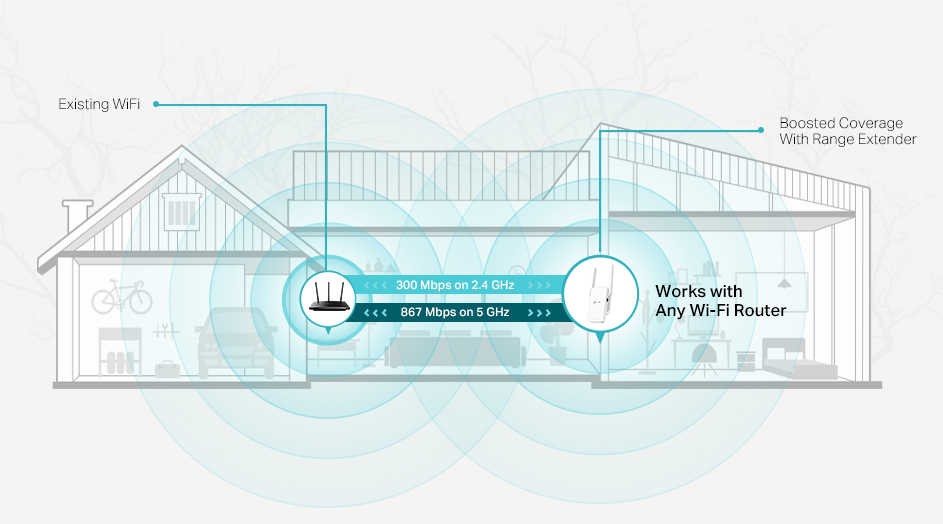
Tri Band WiFi extendersimprove internet speed by using three separate bands. This helps reduce traffic and interference. Devices connect smoothly with fewer slowdowns.
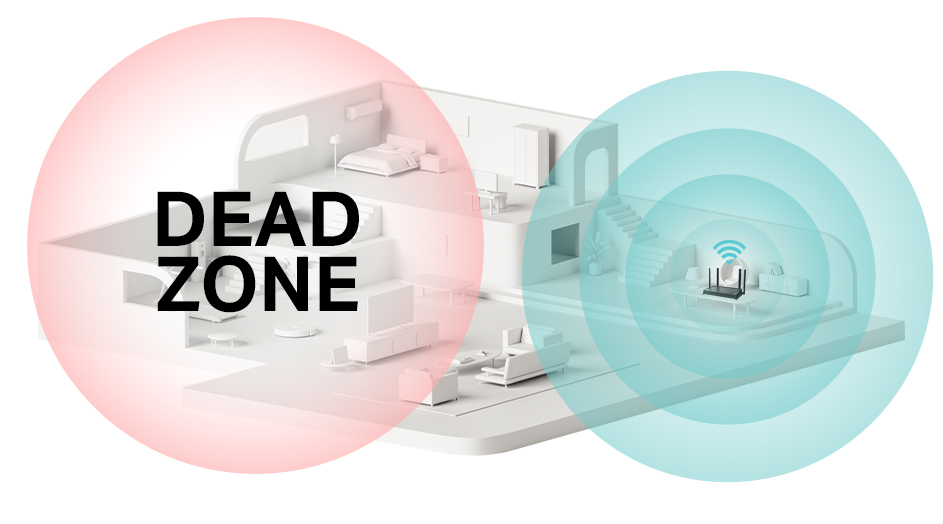
They cover larger areas, so WiFi reaches every corner of your home or office. This means fewer dead zones and better connection everywhere.
- More devicescan connect without slowing down the network.
- Tri Band extenders offer better stabilityfor video calls and streaming.
- They help keep gamingfast and smooth with less lag.
- Easy to set up and manage, even for beginners.
Credit: www.tp-link.com
Choosing The Right Location
Avoid interferencefrom devices like microwaves, cordless phones, and Bluetooth gadgets. These can block the WiFi signal and slow down your connection.
Keep the extenderaway from thick walls and large metal objects. These can weaken the signal and lower performance.
| Distance from Router | Reason |
|---|---|
| Too Close | May cause signal overlap and interference. |
| Too Far | Signal becomes weak and unreliable. |
| Ideal Distance | Halfway between router and weak signal area. |
Place the extender highon a shelf or wall mount. This helps the signal reach more areas in your home.
Avoid placing it on the floor or behind furniture. Signals travel better in open spaces.
Preparing Your Network
Check if your router supports tri-band WiFi extenders. Many older routers may not work well.
Make sure your router’s firmware is up to date. This helps with better connection and security.
Know the names (SSIDs) and passwordsof your networks. These are needed during setup.
Sometimes routers have separate networks for 2.4 GHz and 5 GHz bands. Identify each one clearly.
Write down all network details before starting the extender setup. This saves time and avoids errors.
Credit: www.tp-link.com
Step-by-step Setup Guide
Begin by placing the tri-band WiFi extender near your router for strong signals. Connect it to your network using the app or web setup page. Adjust settings and test connection for better WiFi coverage at home.
Connecting To Power
Plug the tri-band WiFi extender into a power outlet near your router. Wait for the power LED to turn on. This means the device is ready for setup. Make sure the outlet is working to avoid setup issues.
Using Wps For Quick Setup
Press the WPS button on your router. Then, press the WPS button on the extender within two minutes. The extender connects automatically to your router. Look for a solid light to confirm connection. No password needed for this method.
Manual Configuration Via Web Interface
Open a web browser on your device. Enter the extender’s IP address or URL provided in the manual. Log in with the default username and password. Follow the on-screen instructions to select your WiFi network and enter its password. Save settings and wait for the extender to reboot.
Mobile App Setup
- Download the extender’s official app from your app store.
- Open the app and create an account if required.
- Follow the app’s setup wizard to connect the extender.
- Choose your WiFi network and enter its password.
- Complete setup and check signal strength in the app.
Optimizing Performance
Selecting the Best WiFi Channelhelps reduce interference. Choose a channel with less traffic. Use apps or router settings to find free channels. Tri-band extenders often have one 2.4 GHz and two 5 GHz bands. Assign devices to bands based on their needs. 2.4 GHz covers more area but is slower. 5 GHz is faster but covers less distance.
Managing Device Connectionskeeps your network stable. Limit the number of devices on one band. Spread devices evenly across all bands. This prevents slow speeds and lag. Prioritize important devices for better performance. Disconnect unused devices to free up bandwidth.
Regular Firmware Updatesimprove security and speed. Check for updates on the extender’s app or website. Update firmware often to fix bugs. Updated software helps your extender work well with new devices. It also protects your network from threats.
Troubleshooting Common Issues
Signal dropshappen if the extender is too far from your router. Move it closer for a stronger signal. Walls and large objects block WiFi signals. Try placing the extender in an open space. Restarting the extender can fix temporary glitches.
Slow speedsoften occur when many devices connect at once. Disconnect devices not in use. Make sure the extender firmware is updated. Use the 5GHz band for faster internet if possible.
Connection failuresmay be caused by wrong password or network settings. Double-check the WiFi password and network name. Reset the extender if it cannot connect after several tries. Ensure your router supports tri-band extenders.
Advanced Tips For Power Users
Guest networkskeep your main WiFi safe. They let visitors use the internet without accessing your devices. Set a simple nameand a strong passwordfor guests. Limit their access time if possible.
Using Ethernet backhaulcan make your network faster. Connect your extender to the router with an Ethernet cable. This reduces wireless interference and boosts speed. It also helps if WiFi signals are weak between devices.
Customizing security settingsprotects your network better. Change default passwords right away. Enable WPA3 or WPA2 encryptionfor stronger protection. Turn off features like WPS if not needed. Check for firmware updates regularly to fix bugs and keep security tight.

Credit: www.youtube.com
Frequently Asked Questions
What Is A Tri-band Wifi Extender?
A tri-band WiFi extender boosts your network by adding a third band. This third band reduces congestion, enhancing speed and stability. It uses two 5GHz bands and one 2. 4GHz band. This setup ensures optimal connectivity for multiple devices, providing seamless internet access.
How Does A Tri-band Extender Improve Performance?
A tri-band extender reduces network congestion by providing an additional band. It offers dedicated channels for different devices. This setup ensures faster speeds and stable connections. By balancing the load, it enhances overall network performance. This is particularly beneficial in homes with numerous connected devices.
Is A Tri-band Extender Easy To Set Up?
Yes, setting up a tri-band extender is straightforward. Most models offer a user-friendly setup wizard. Simply plug in the device and follow the instructions. Ensure it’s positioned optimally for best coverage. Manufacturers often provide mobile apps for easy configuration and management.
Where Should I Place My Tri-band Extender?
Place your tri-band extender halfway between the router and dead zones. Avoid obstructions like walls or metal objects. Ensure it’s within range of the router’s signal. This strategic placement enhances coverage and minimizes signal loss. For optimal performance, periodically check and adjust its position.
Conclusion
Setting up your tri-band WiFi extender can boost your home internet. Place the extender where the signal is still strong but reaches weak spots. Follow the setup steps carefully for the best results. Test your connection after setup to ensure better speed and coverage.
Keep your device’s firmware updated for smooth performance. Small changes make a big difference in your WiFi experience. Enjoy faster, more reliable internet throughout your space. Simple tips lead to great results. Stay connected without interruptions.