Are you tired of lag ruining your gaming sessions? Your router settings might be the hidden culprit.
Changing a few key settings on your gaming router can boost your connection speed, reduce delays, and give you the edge over opponents. You’ll discover exactly what settings you should tweak to get the best performance from your router. Keep reading to unlock smoother gameplay and faster response times—you won’t want to miss these simple but powerful tips.
Optimize Router Placement
Optimizing your router’s placement is a simple yet powerful way to enhance your gaming experience. Even the best gaming router can underperform if it’s tucked away in a corner or blocked by walls. Adjusting where you place your router can reduce lag and improve connection stability, giving you smoother gameplay.
Ideal Location Tips
Place your router in a central spot within your gaming area. This helps the signal reach all corners evenly, reducing dead zones where your connection might drop.
Elevate the router off the floor, such as on a shelf or desk. Signals travel better when the router is higher, avoiding obstacles that might block the path.
Keep the router away from other electronics that emit wireless signals, like cordless phones or microwaves. These devices can interfere and cause your connection to slow down unexpectedly.
Avoiding Signal Obstacles
Think about the materials between your router and your gaming device. Thick walls, metal objects, and glass can weaken Wi-Fi signals significantly.
Try not to place the router near large metal surfaces or inside cabinets. I once moved my router out of a closed cabinet, and the difference in speed was immediate and noticeable.
Consider the layout of your home or gaming space. Does your signal have to pass through multiple walls? If so, placing the router closer or using additional access points might help.
Credit: helpdeskgeek.com
Update Router Firmware
Keeping your gaming router’s firmware up to date is a simple yet powerful step to improve your gaming experience. Firmware updates are like software upgrades for your router, fixing bugs and adding features that can enhance performance. Skipping these updates can leave you vulnerable to security risks and slower connections.
Checking For Updates
Most gaming routers have a built-in option to check for firmware updates. You can usually find this in the router’s settings page accessed through your web browser. Look for sections labeled “Firmware,” “Router Update,” or “System.”
If you’re unsure how to access your router’s dashboard, check the manual or the manufacturer’s website. Some routers also offer apps that notify you when new firmware is available. Don’t ignore these notifications—setting reminders can help you stay current.
Benefits Of Latest Firmware
Updated firmware can boost your router’s speed and stability, which is crucial during intense online gaming sessions. It often includes security patches that protect your network from new threats. This means fewer disconnects and less lag caused by external attacks or bugs.
New firmware can also unlock features that improve your gaming setup, such as better Quality of Service (QoS) options or enhanced traffic management. Have you ever experienced lag spikes right when you were about to win? Updated firmware can help prevent that by prioritizing game data.
Set Up Quality Of Service (qos)
Setting up Quality of Service (QoS) on a gaming router helps manage your internet traffic. It controls how data moves across your network. This setup ensures your games get priority over other activities. This way, gaming lag reduces, and your connection feels smoother. Adjusting QoS correctly boosts your gaming experience without cutting off other devices.
Prioritizing Gaming Traffic
Prioritize gaming traffic to make sure game data flows first. Routers can recognize gaming packets by game type or device IP. Assign high priority to these packets so they reach the internet faster. This reduces delays during gameplay and keeps your ping low. Other less important traffic, like downloads or streaming, will wait.
Use the router’s QoS settings to:
- Select gaming devices or applications
- Set them to high priority
- Save changes to activate settings
Configuring Bandwidth Allocation
Bandwidth allocation divides your internet speed among devices or apps. Configure it to give more bandwidth to your gaming device. Limit bandwidth for activities like video streaming or file sharing. This stops them from using too much speed and causing lag.
Some routers let you set exact speeds for each device or app. Others use simple sliders to adjust priorities. Check your router’s QoS menu and allocate bandwidth like this:
- Identify your gaming device
- Assign a larger portion of bandwidth
- Reduce bandwidth for non-gaming devices
- Apply settings and test the connection
Adjust Wireless Settings
Adjust the wireless channel to reduce interference and improve connection. Enable Quality of Service (QoS) to prioritize gaming traffic for smoother play. Set a strong, unique password to keep your network secure.
Adjusting the wireless settings on your gaming router can dramatically improve your gaming experience. It’s not just about plugging in and playing; making thoughtful adjustments can significantly reduce lag and enhance connectivity. Let’s explore some key changes you can make to optimize your wireless settings for a seamless gaming adventure.Choosing The Right Wi-fi Band
When it comes to Wi-Fi bands, you typically have two options: 2.4 GHz and 5 GHz. Each has its advantages and knowing when to use each can impact your gaming performance. The 2.4 GHz band covers a larger area and penetrates walls better, making it ideal if you’re gaming far from the router. However, it’s often crowded with other devices, which can lead to interference. On the other hand, the 5 GHz band offers faster speeds and less congestion, perfect for gaming when you’re closer to the router. Experiment with both to see which band gives you the best performance in your specific environment.Selecting Optimal Channels
Choosing the right channel can be a game-changer for your connection stability. Most routers are set to “auto” channel selection by default, which might not always pick the best option for your needs. To find the optimal channel, you can use apps like Wi-Fi Analyzer to see which channels are less crowded. Switching to a less busy channel can reduce interference from other networks and boost your connection’s reliability. Why settle for lag when a quick channel change could offer a smoother gaming experience? Making these adjustments might seem like a small step, but they can profoundly impact your gaming sessions. Have you tried tweaking these settings yet? Your next victory could be just a few clicks away.Enable Dmz Or Port Forwarding
Enabling DMZ or setting up port forwarding on your gaming router can significantly improve your online gaming experience. These settings help direct traffic to your gaming device more efficiently, reducing lag and connection issues. But it’s important to balance performance with security to keep your network safe.
Reducing Latency
Latency is the delay between your command and the game’s response. By enabling DMZ or port forwarding, you give your gaming console or PC a direct path through the router. This reduces the time data spends being checked or rerouted.
For example, when I enabled port forwarding for my favorite multiplayer game, I noticed a smoother connection and fewer disconnects during intense matches. You want to forward the specific ports your game uses, which you can find in the game’s support documentation.
Keep in mind that DMZ opens all ports to a device, which can lower latency but increases exposure. Port forwarding, on the other hand, opens only the ports needed, offering a more controlled solution.
Securely Opening Ports
Opening ports might sound risky, but you can do it safely. Instead of opening all ports, identify the exact ones your game requires and forward only those.
- Check the official game guides or router manuals for port numbers.
- Assign a static IP to your gaming device to avoid conflicts.
- Regularly update your router’s firmware to patch vulnerabilities.
Use port forwarding for games you play often. If you want to test a new game, try DMZ briefly and then switch back to port forwarding once you confirm the ports needed. This approach keeps your network secure while optimizing performance.
Have you ever wondered if your slow connection is due to blocked ports? Adjusting these settings could be the simple fix that makes your gaming sessions frustration-free.
Use Static Ip Addresses
Using static IP addresses on a gaming router improves network stability. Devices keep the same address each time they connect. This reduces connection conflicts and interruptions during gameplay. It helps the router manage traffic better for your gaming device. Static IPs also make port forwarding easier, which is key for many online games.
Benefits For Gaming
- Reduces lag by maintaining a consistent connection
- Prevents IP conflicts between devices
- Simplifies setting up port forwarding rules
- Improves communication between your console or PC and the router
- Helps maintain a steady and reliable gaming experience
Assigning Static Ips
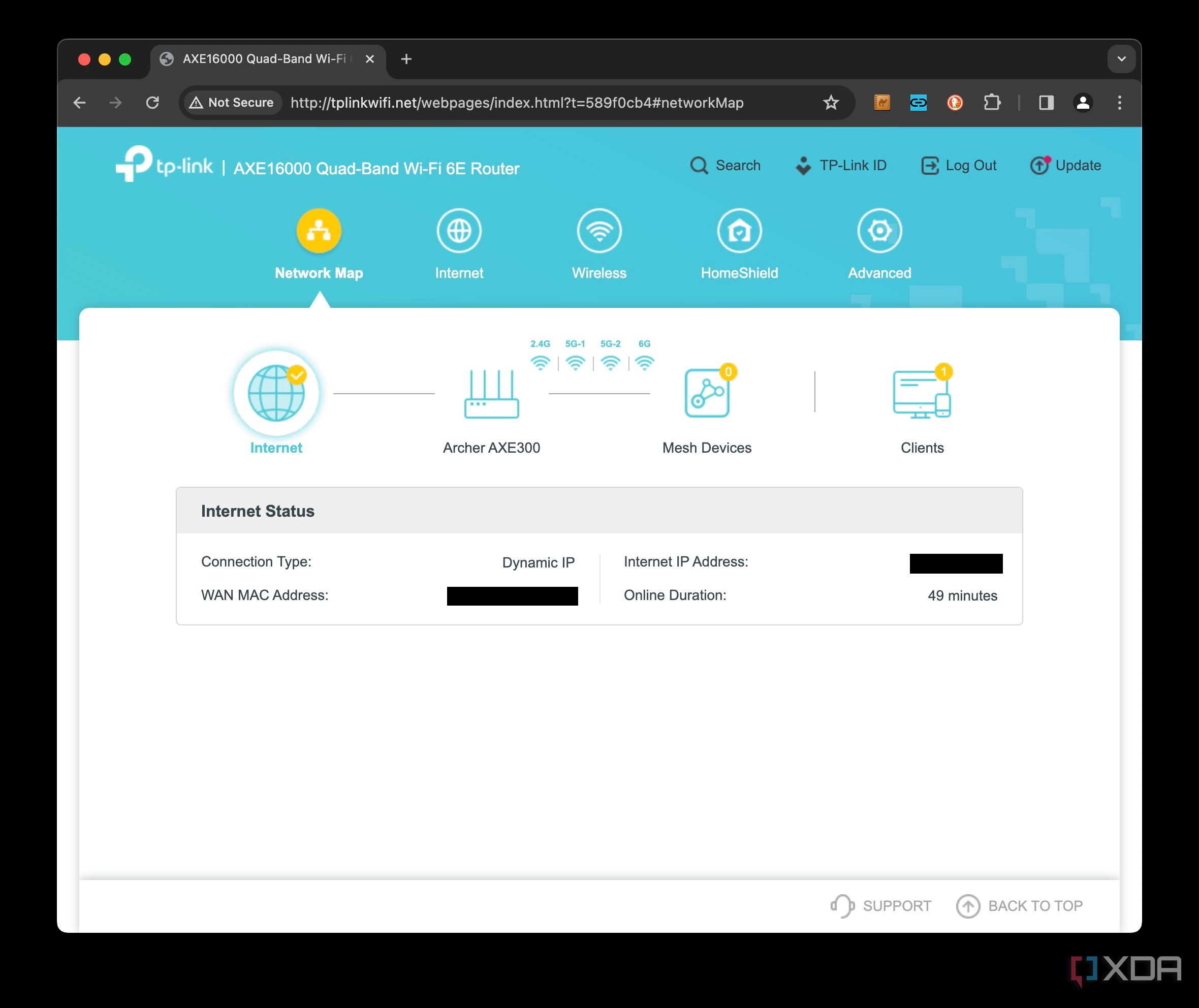
Access your router’s admin panel through a web browser. Find the DHCP settings or LAN settings section. Look for an option to add static IP addresses or address reservation.
Enter the device’s MAC address and assign an IP address outside the DHCP range. Save the settings and restart the device. Check the device to confirm it uses the new static IP.
Disable Unnecessary Features
Disabling unnecessary features on your gaming router helps improve speed and reduce lag. Some features consume bandwidth or create security risks. Turning off what you do not need can make your gaming smoother.
Turning Off Upnp When Needed
Universal Plug and Play (UPnP) allows devices to open ports automatically. This can be useful for some games. But UPnP can expose your network to attacks. Turn it off if you do not use games or apps requiring automatic port forwarding.
Manually open only the ports you need for gaming. This reduces security risks and improves network stability.
Limiting Background Traffic
Background apps and devices often use bandwidth without notice. This slows down your gaming connection. Use your router settings to limit or block unnecessary background traffic.
Focus bandwidth on your gaming device. Pause downloads and streaming on other devices while playing. This ensures your game gets the best possible speed.
Credit: www.xda-developers.com
Set Up Network Security
Setting up network security on your gaming router is crucial to protect your devices and data from unauthorized access. A secure network ensures smooth gameplay without interruptions caused by hacking or bandwidth theft. Taking a few simple steps can significantly improve your router’s defense against common cyber threats.
Strong Passwords And Encryption
Start by changing the default password of your router to a strong, unique one. Use a mix of uppercase and lowercase letters, numbers, and special characters to make it hard to guess. Avoid using easily found information like birthdays or simple words.
Next, enable the highest level of encryption your router supports, preferably WPA3. If WPA3 isn’t available, WPA2 is still a solid choice. This encryption scrambles your data, making it tough for outsiders to intercept your connection.
Have you ever thought about how many devices connect to your network? Every device adds a point of vulnerability, so keep track and remove any unfamiliar ones regularly.
Guest Network Configuration
Setting up a guest network separates visitors from your main gaming network. This prevents guests from accessing your private devices and files. It also limits their bandwidth use, so your gaming experience stays fast and stable.
Make sure the guest network has its own strong password and uses encryption similar to your main network. You can even set time limits or restrict access to specific websites if your router allows it.
Have you ever shared your Wi-Fi with a friend only to notice lag spikes afterward? A guest network can prevent this by keeping their devices off your primary connection.
Monitor Network Performance
Monitoring network performance helps spot slowdowns and improve connection stability. Adjust settings like bandwidth allocation and channel selection for smoother gaming. Regular checks ensure your router runs at its best during play.
Monitoring your network performance is crucial if you want to get the most out of your gaming router. A smooth and stable connection can make the difference between victory and defeat in your favorite games. By keeping an eye on network performance, you can identify bottlenecks and optimize settings to ensure lag-free gaming sessions.Using Built-in Tools
Most gaming routers come equipped with built-in tools that allow you to monitor network performance efficiently. These tools provide real-time data about your internet speed, latency, and connected devices. Access these tools through the router’s web interface or a dedicated mobile app. You can often find detailed graphs and logs that display bandwidth usage and signal strength. These insights help you adjust settings like Quality of Service (QoS) to prioritize gaming traffic. Imagine playing a high-stakes online match and suddenly experiencing lag. By monitoring performance, you might notice that a background app is hogging bandwidth. With this knowledge, you can swiftly mitigate the issue.Third-party Monitoring Apps
If your router’s built-in tools don’t meet your needs, third-party monitoring apps offer a powerful alternative. These apps can provide deeper insights and more comprehensive data. For instance, applications like NetSpot or Wireshark allow you to conduct a thorough network analysis. These tools can uncover hidden issues such as interference from other wireless devices or suboptimal channel selection. Consider trying a third-party app if your gaming experience isn’t as smooth as you’d like it to be. The additional data might reveal a simple tweak that could significantly enhance your connection stability and speed. Think about it: how much better would your gaming sessions be if you could predict and prevent issues before they affect your gameplay? Monitoring your network performance is not just a technical task; it’s a strategic advantage.
Credit: dongknows.com
Frequently Asked Questions
What Router Settings Improve Gaming Performance?
Adjust QoS to prioritize gaming traffic. Enable UPnP for seamless connections. Use 5GHz Wi-Fi for faster speeds. Disable unused features to reduce lag. Update firmware regularly for stability and security.
How To Reduce Gaming Lag On A Router?
Enable QoS to prioritize gaming packets. Use a wired Ethernet connection. Disable background downloads and apps. Choose a less crowded Wi-Fi channel. Update router firmware to fix bugs.
Should I Enable Port Forwarding For Gaming?
Yes, port forwarding allows better game server connections. It reduces NAT issues and improves multiplayer experience. Configure ports based on your game’s requirements. Always secure your router when forwarding ports.
Why Use A Separate Gaming Network On My Router?
A separate network isolates gaming traffic from other devices. It reduces congestion and improves speed. It enhances security by limiting access to your main network. Set up a guest network for gaming devices.
Conclusion
Changing the right settings can improve your gaming experience a lot. Focus on adjusting QoS, channel, and security settings first. These help reduce lag and keep your connection safe. Keep your router’s firmware up to date for best results. Small tweaks make a big difference during gameplay.
Try different settings to find what works for you. A stable and fast connection leads to better gaming sessions. Take control of your router and enjoy smoother play.